AdministeringYour organizationConcept
About your organization
What an organization is, what Owners and Admins can each do, and the Organization page's five groups: who sees and changes each section.
Applies toOwner · Admin
In CapitolMath, an organization is the group you work in — a team, a company, a coalition, or just you. Everything your people make and pay for belongs to it: saved views and lists, legislator scorecards, API keys, widgets, webhooks, the plan and its Full licenses. People belong to it as members.
One login can belong to several organizations. You work in one at a time and can switch between them; see Choosing and switching organizations. Anyone who is signed in can create another organization under the same login — up to three free ones, since organizations on a paid plan don't count toward that limit.
Owners and Admins#
Each member has a role, and two of the roles administer the organization:
- Admins run it day to day. They invite and remove members, change roles and licenses, manage groups, rename the organization, see every saved view and API key in it, build and publish widgets, oversee webhooks, and read the audit log. They can see the plan and its usage but can't change them.
- Owners can do everything an Admin can, plus what concerns money and control of the organization itself: changing the plan, payment methods and invoices, the contract contact and verified domain, single sign-on, downloading everything the organization holds, and closing it.
Team members have no authority over the organization. A role says nothing about what someone may do with the data — that's their license, Full or Basic, and the two are independent. See Roles and licenses for the full lists.
Whoever creates an organization is its first Owner, with a Full license. An organization always keeps at least one Owner: only an Owner can make someone else one, so an organization without an Owner could never be handed on.
The Organization page#
Open Organization from the menu under your organization's name at the top right. It's one page in five groups, listed in its On this page sidebar: choose a group or a section to jump to it.
Owners and Admins run the organization from it. Team members see it too — its profile and the workflow settings their tracked bills use — and can change a section only when they've been given its permission. Client members don't see it. A section you can't change says why at the top: it names the permission, or says it's the Owner's or not on your plan.
| Group | Sections | Who changes them |
|---|---|---|
| Company information | Profile · Plan · Members · Invitations · Groups · Ownership and recovery | Profile: Owners, and Admins given Manage organization profile. Members and Invitations: Manage members. Groups: Manage groups. Plan, and Ownership and recovery: Owners |
| Workflow | Saved views · Saved view categories · Bill position categories · Priority · Bill tracking lifecycle · Tags · Reports · Defaults | Saved view categories: Manage saved view categories. The rest: Manage workflow settings, on for Owners and Admins. See Workflow settings |
| Activity | API keys · API usage · Requests by user · AI assistant usage · What this organization publishes · Audit log | Owners and Admins see these; keys are revoked here |
| Billing | Payment method · Invoices | Owners only: an Admin's page has no billing on it at all |
| Other | Single sign-on · Export and close | Single sign-on: Manage SSO, on Pro and Scale. Export and close: Owners |
The permissions in bold are rows of the permission grid, set in each member's form.
Requests by user#
Activity → Requests by user lists this period's API requests by the person who made each key, with each of their keys that was used beneath them, so a runaway integration is easy to find. A key's requests count under whoever created it, even after they've left. API usage, just above it, shows the whole organization's pool for the month.
What this organization publishes#
Activity → What this organization publishes counts everything that reaches outside CapitolMath: live API keys, published widgets, webhooks and where they send, and tracked bills whose positions are marked public. Something elsewhere depends on each of them, so they belong to the organization rather than to whoever set them up.
Ownership and recovery#
Company information → Ownership and recovery holds the two ways back into the organization if you lose access: a contract contact and a verified email domain. Admins can see them; only an Owner changes them. Keep at least two Owners, so the organization can be recovered if one person leaves.
Export and close#
Other → Export and close downloads everything the organization holds as one file, and closes the organization. Both are the Owner's; Admins see what they do.
The file is JSON, and it holds:
- People and access: members with their roles, licenses and usernames, pending invitations, groups, permission adjustments, single sign-on's state and your verified email domains.
- What you've built: saved views and their categories, scorecards with their bills, versions and methodologies, widgets with every saved version, webhooks, API keys and the logo itself.
- Tracking: your statuses, labels and tags, every tracked item with its history, watchers and shares, notes with their earlier versions, tasks, triage sources and decisions, and reports with each run.
- Everything else: assistant conversations, notifications, dataset purchases, subscriptions and invoices, and the audit log with what you need to verify it.
Some things in it are yours alone. It holds the bills you watch, what you have read, your support requests and your sign-up details, and no other member's. Secrets are never in it: API keys show only their first and last characters, webhooks only the host they send to, and verification tokens not at all.
Where to go next#
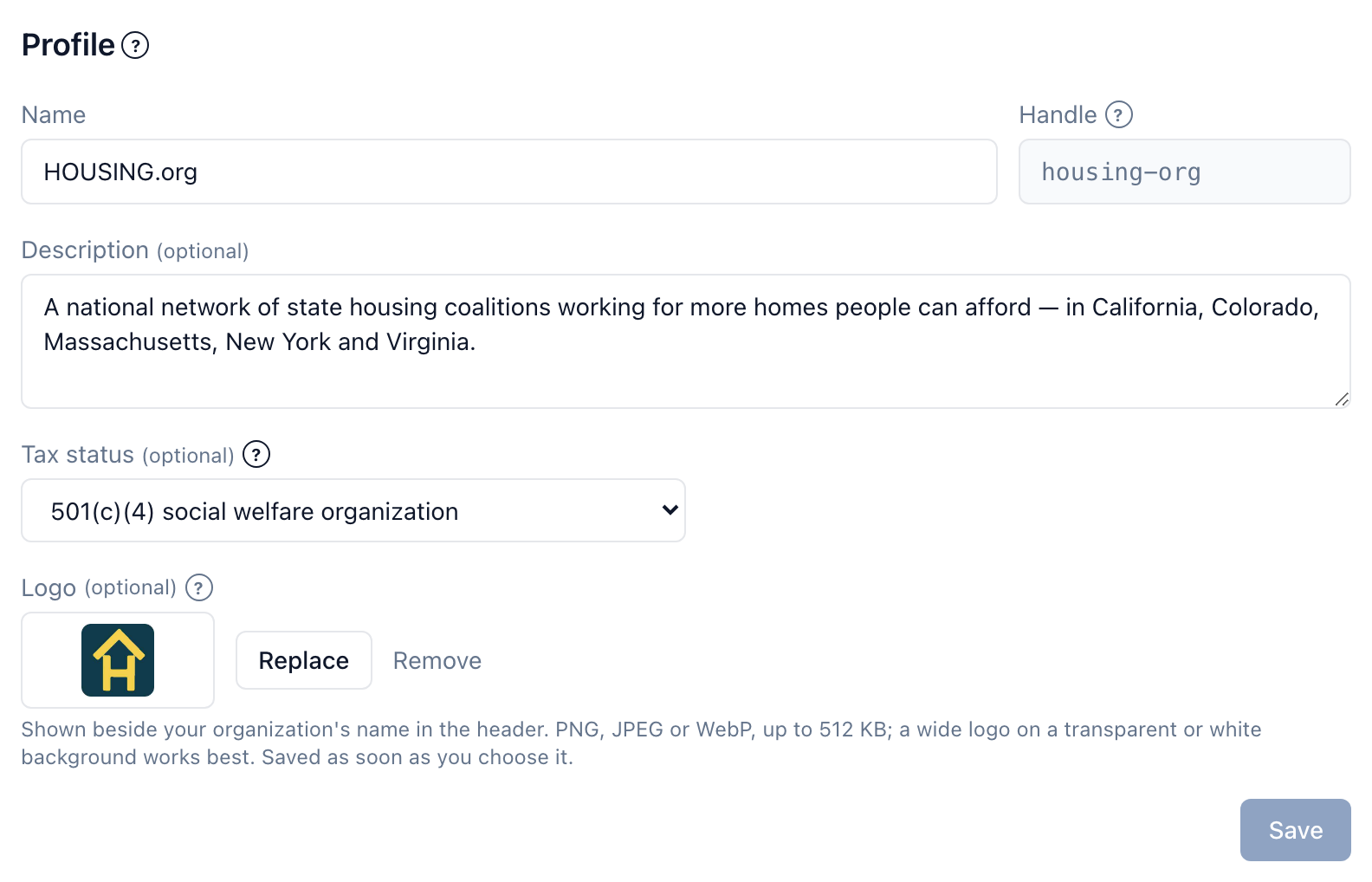
- Organization settings — the organization's name, description, tax status and logo.
- Workflow settings — positions, priority, your stages, tags, reports and defaults.
- Inviting members and Managing members.
- Plans and billing — for Owners.