AdministeringPlans and billingHow to
Plans and billing
Upgrade or downgrade the plan, add Full licenses to Pro, pay yearly or request an invoice, choose the State plan's state, use a promotion code, and manage cards and invoices.
Applies toOwner
An organization's plan decides how many Full licenses it has, how much it can call the API, and which tools it can use. Only an Owner changes the plan or its billing; Admins can see the plan and its usage on the Organization page, but not change them. To compare what each plan includes, see Plans and what they include.
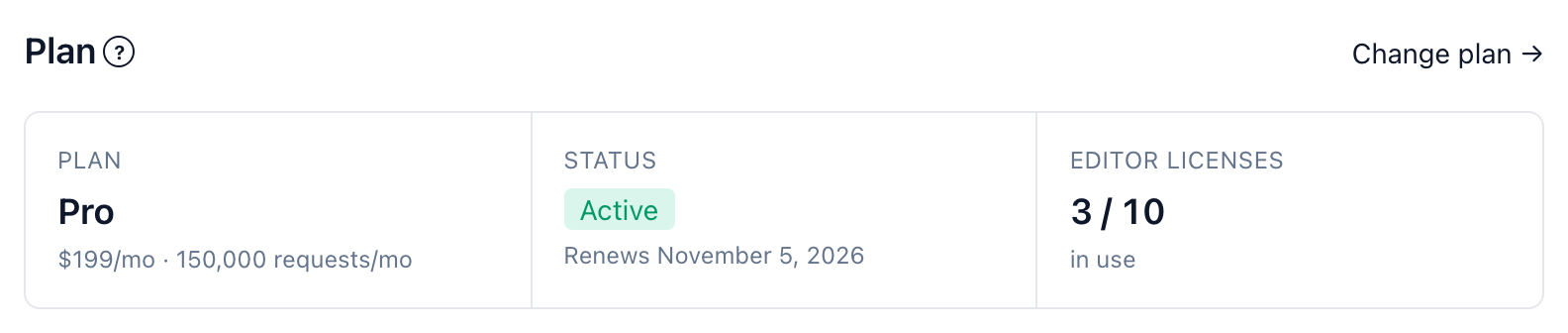
Changing plan#
-
Open Organization. Under Plan, select Choose a plan → — or Change plan → if the organization already pays.
-
On Choose a plan, choose Monthly or Yearly billing, then select the plan you want. Yearly costs twelve times the monthly price. For the State plan, you also choose which state it covers; on Pro, how many Full licenses (see below).
-
If this is your first paid plan, you go to Stripe's checkout to pay. The plan starts once payment completes. Paying yearly for Pro or Scale, you can choose Request an invoice instead (see below).
-
If you're already paying, a dialog shows what the change will do, and the plan changes in place — never a second subscription:
- A more expensive plan takes effect now. You're charged the prorated difference for the rest of the current period, shown on the button: Upgrade to Pro — pay $….
- A cheaper plan, including the free Browse plan, takes effect at the end of the period you've paid for, and you keep what you paid for until then. The button names the plan and the date it moves on.
Nothing is deleted by changing plan — every member, saved view and setting stays. A scheduled move shows under Plan with a Change or undo → link; open it and select Keep your current plan instead to call the move off.
A change keeps how the organization is billed, monthly or yearly. To switch between them, write to support@capitolmath.ai.
When the new plan has fewer Full licenses#
The dialog asks who keeps a Full license. Owners always keep theirs, so they're already chosen, and a plan with fewer Full licenses than the organization has Owners can't be chosen until an Owner is made an Admin. Everyone else moves to a Basic license when the change takes effect, and the API keys they created are revoked; the dialog lists whose, and how many keys. If a plan shrinks without anyone choosing — a subscription canceled in Stripe, for instance — Owners keep their licenses, then Admins, then whoever has held one longest.
Adding Full licenses to Pro#
Pro includes a number of Full licenses and can take more, one at a time, each billed with the plan up to the most Pro allows (the plan table has both numbers and the price). On Choose a plan, set the number with + and − under Pro's price:
- Before the first payment, the number goes to checkout with the plan.
- On Pro already, select Change to … Full licenses. More take effect now, charged pro rata for the rest of the period. Fewer take effect at the end of the period, and if more people hold a Full license than that leaves, the dialog asks who keeps one, as for a plan change.
Moving from Pro to another plan drops the added licenses: the new plan's own number applies.
Paying yearly by invoice#
Pro and Scale billed yearly can be paid by invoice instead of a card. Invoice billing is approved by CapitolMath, typically within one business day.
-
On Choose a plan, turn Yearly on, set the number of Full licenses for Pro, and select Request an invoice under the plan.
-
Enter the Billing contact and Billing email the invoice goes to, and, if you have one, the Purchase order number to print on it. Select Send request.
-
The request shows under Organization → Plan while it waits. Nothing is charged and the plan doesn't change until it's approved. To call it off, select Withdraw.
When CapitolMath approves the request, the plan starts and you're emailed. Stripe emails the year's invoice to the billing contact, payable within 30 days by bank transfer or card, with your purchase order number on it. The invoice is priced at the plan's price on the day it's approved. If the request is declined, you're emailed the reason; you can still pay by card.
An organization has one request waiting at a time. To change the plan or the number of licenses you asked for, withdraw the request and send a new one. If you'd rather not wait, you can still choose the plan and pay by card; the request is then withdrawn for you. For a W-9 or a security questionnaire, write to support@capitolmath.ai.
The State plan's state#
The State plan covers one state: its API, exports and analysis are held to that state. You choose it before checkout. To change it later, open Organization and, under Plan → State covered, select Change, pick a state and select Save. Any of the 50 states can be chosen; Congress and D.C. can't.
Until a state is chosen, the organization's API keys are refused with a message saying so. See Authentication and permissions for how the API holds requests to the state.
Promotion codes#
If you have a promotion code, enter it on Stripe's checkout page when you first subscribe. A change to an organization that already pays doesn't go through checkout, so there's nowhere to enter one then.
Payment methods#
Organization → Payment method, under Billing, lists the cards on file, with the card's brand, last four digits and expiry, and which is the Default. To add, replace or remove a card, select Manage in Stripe →. Card details are held by Stripe and never reach CapitolMath.
Below the cards, Billing email shows where Stripe sends invoices and receipts. When an invoice request is approved, it becomes the billing contact's email from the request. To change it, write to support@capitolmath.ai.
Invoices#
Organization → Invoices lists every invoice with its Date, Invoice number, Amount and Status. Select View to open it or PDF to download it.