AdministeringPeopleHow to
Inviting members
Invite someone with a role, a license and groups — and edit, re-send or rescind an invitation before it expires.
Applies toOwner · Admin
Owners and Admins bring people into the organization by inviting them. An invitation carries everything the person will join with — role, license, name, groups and permissions — so they arrive set up, and you can change most of it until they accept.
-
Open Organization and go to Members.
-
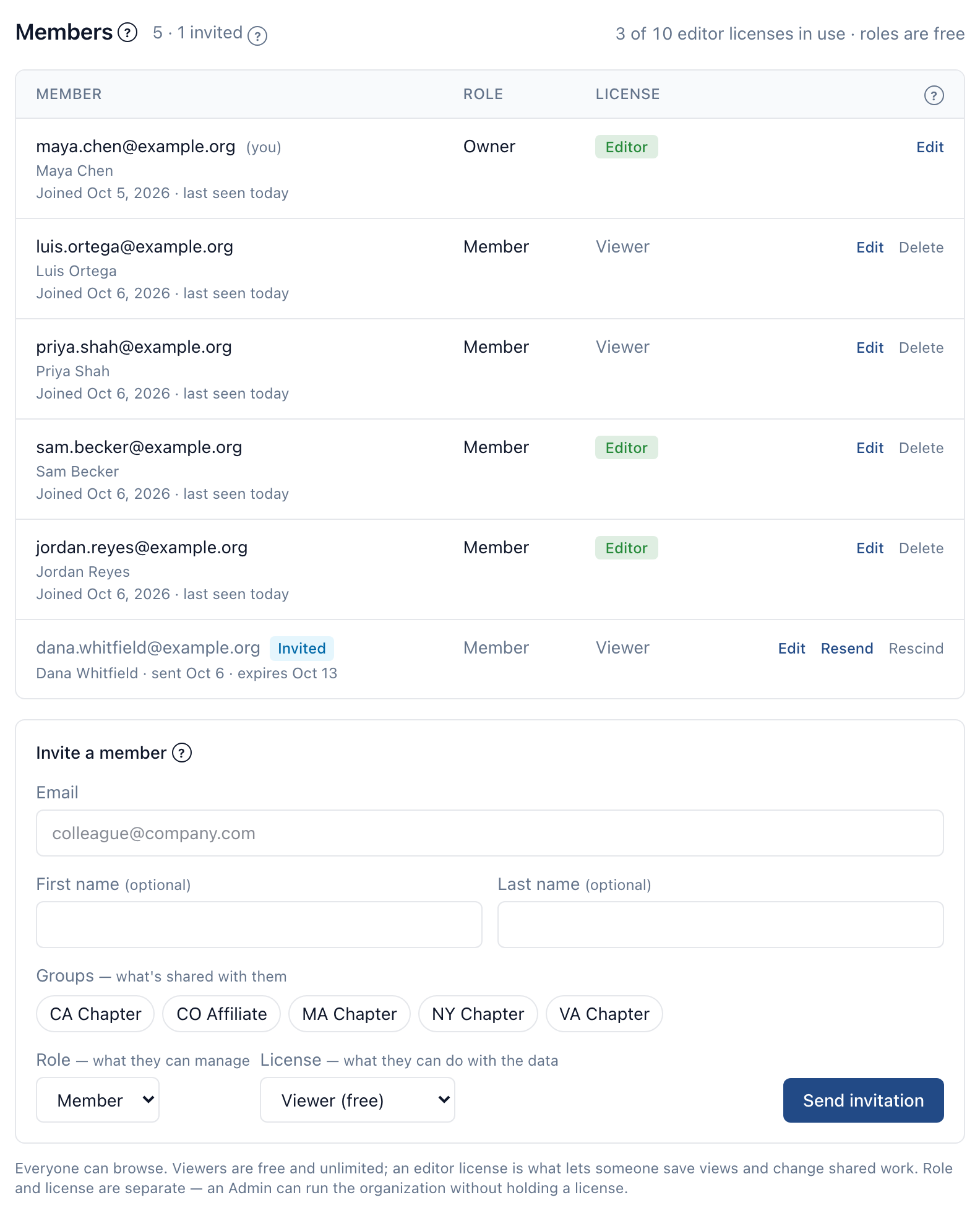
Select Invite a member and enter their Email. First name and Last name are optional; they're used only if the person hasn't already set a name of their own.
-
Under Groups, pick the groups they should join — what's shared with those groups will be shared with them. The whole team includes them without being picked.
-
Choose a Role — Team member, Admin or Owner — and a License: Basic (free) or Full (paid seat). Only an Owner can invite someone as an Owner, and an Owner is always invited with a Full license.
-
Optionally, open What they can see and do to change their permissions from the defaults for that role and license, or copy them from another member with Copy permissions from…. Only an Owner sets an Admin's permissions. See Roles and licenses.
-
Select Send invitation.
They appear in the members list marked Invited, with the date it was sent and the date it expires. See Roles and licenses for what each role and license allows.
What they receive#
An email from CapitolMath saying who invited them, to which organization, and as what. Its link works once and expires after 14 days. Following it, they sign in — or, if they're new to CapitolMath, set up a login and choose a password — and join.
They must sign in with the address you invited. The link could have been forwarded, and an invitation is to a person, not to whoever holds the link.
Full licenses#
A Full invitation is offered only while the plan has a license free, and the license is assigned when they join, not when you invite them. If every license has been taken by the time they accept, they join with a Basic license — and with only the permissions a Basic license allows — and you can give them a license later from Managing members. An Owner always holds a Full license, so someone invited as an Owner can't join until one is free; their link works again once it is. You can add their photo once they've joined.
Changing, re-sending or withdrawing an invitation#
Each pending invitation in the members list has three actions:
| Action | What it does |
|---|---|
| Edit | Change the role, license, name or groups it offers. Nothing is emailed: the link they already have now offers the new details. |
| Resend | Email it again with a new link and a new 14-day expiry. The earlier link stops working. Wait a minute between sends to the same address. |
| Rescind | Withdraw it. They aren't emailed; if they follow the link later, it tells them the invitation has expired and to ask you for a new one. |
An invitation that has run out shows Invitation expired; select Resend to send a fresh one. Only an Owner can edit, re-send or rescind an invitation to become an Owner.