SharingWidgetsHow to
Creating a widget
Build a widget: choose a topic, one record or a collection, its source and options, check the preview, and publish.
Applies toOwner · Admin
The widget builder asks what to show, then how to show it, and previews the real widget as you go. When you're done you'll have a draft with its own embed code, ready to publish.
To show a collection, make the saved view or list first — bills and lists in Legislation, meetings in the Calendar, legislators in Elected Officials — see Creating a saved view. The widget follows the view from then on.
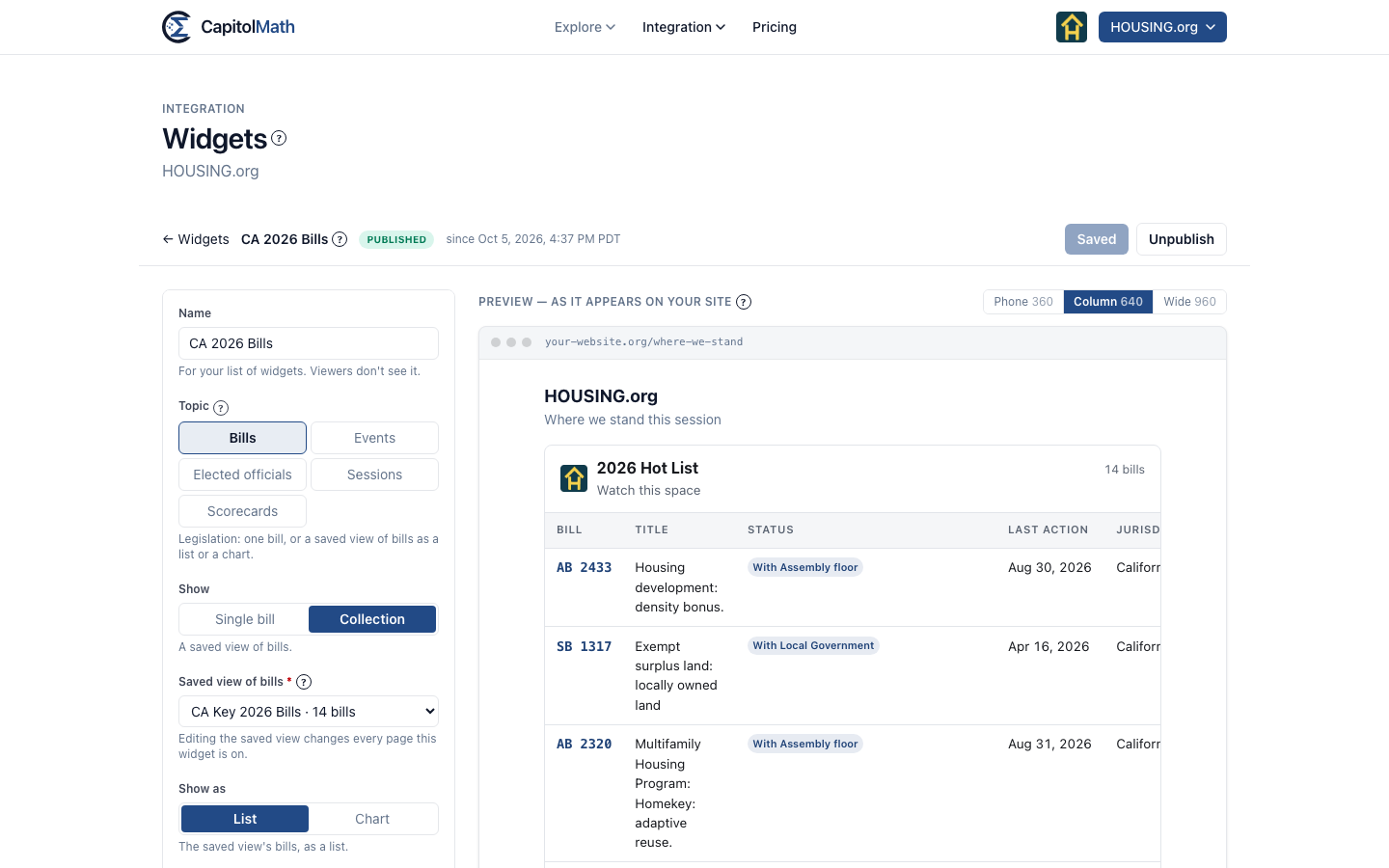
Build it#
- Go to Integration → Widgets and select New widget.
- In Name, give it a name for your list of widgets. Viewers don't see it.
- Under Topic, choose Bills, Events, Elected officials, Sessions or Scorecards.
- For bills, events and officials, under Show, choose one record (Single bill, Single event or Single official) or a Collection.
- Choose the source:
- A collection — pick one of the organization's saved views or lists. Each shows how many records it matches today. For bills or officials, Show as then offers List or Chart; for a chart, pick one under Chart.
- A single record — search for the bill (by number, such as "CA SB 52", or by title), the meeting, or the official.
- Sessions — tick the Jurisdictions to show, up to 12.
- Scorecards — pick the Scorecard.
- Set the options for the type: panels, layout, table columns, how many records it shows. See Widget types and options.
- Under When a reader clicks a link, leave Open details inside the widget on, or turn it off. See Opening details inside a widget.
- Set its look: Heading, Subheading, your logo, Theme, Accent, Width and Density.
- Select Save draft (or press ⌘S).
Until the widget has a name and a source, Save draft stays dimmed, and the bar beside it says what's missing.
Check the preview#
The preview is the widget itself, rendered from your unsaved settings inside a mock page. Switch between Phone, Column and Wide to see it at 360, 640 and 960 pixels: an Auto layout chooses cards or a table, or a schedule, week or month, from the width it's given, so a phone may get something different from your desktop. Click a bill or a legislator in it to try the details panel.
Publish it#
- Select Publish….
- Read Before you publish: what becomes visible, and to whom.
- Select Publish widget — or Save and publish, if you have unsaved changes.
Then copy the embed code below the preview into your page — see Embedding a widget.
Change it later#
Open the widget from Integration → Widgets. A published widget's save button reads Save — goes live: saving updates it on every page it's embedded on.