SharingWebhooksHow to
Creating a webhook
Build a webhook: choose its scope, events and delivery, send a test, and activate it — or try it first with an inspect URL.
Applies toEditor license
The webhook builder walks through five steps: what to watch, which changes, how much that would be, how and where to send it, then create and test. A new webhook doesn't send anything until its destination has answered a test and you activate it.
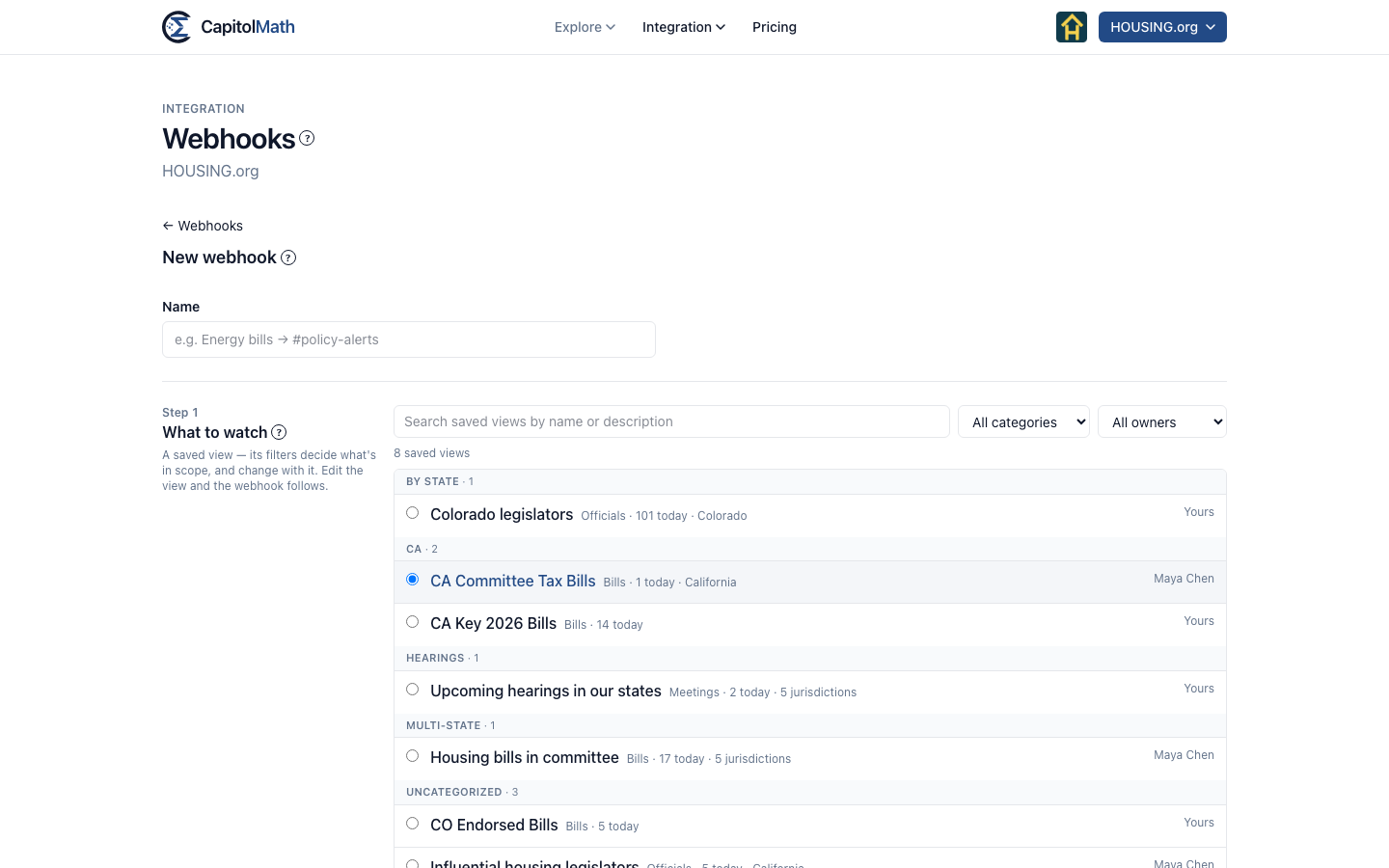
Build it#
- Go to Integration → Webhooks and select New webhook.
- Give it a Name that says what it's for — "Housing bills → #policy-alerts", say.
- What to watch. Pick one of your saved views — search them by name or description, or narrow the list by category and owner — or choose Everything your plan covers. A view your plan can't reach is shown but can't be chosen, with the reason. With access to Tracked items, your Tracked items views are listed too.
- Which changes. Tick the events to send. The list fits the scope: bill events for a view of bills, calendar events for a view of meetings, bill and tracking events for a view of tracked items. With access to Tracked items, Our tracking offers your team's position changes, new owners and notes — see Our tracking. The nightly digest and the two System events that warn you when data is late or coverage changes are ticked to start. Events marked Coming aren't available yet; Paid ones need a plan that includes CapitolMath's analysis.
- How much that is. Read the estimate: what the webhook would have sent over the last 30 days, a day at a time. If it's a lot for a channel of people, choose the digest or a narrower view.
- How and where. Under Delivery, choose Nightly digest, Each change, or Each change, and the digest. Under Send to, choose HTTPS endpoint, Slack channel, Microsoft Teams channel or Email, and enter its URL or up to 10 email addresses.
- Select Create webhook.
For Slack, Teams and email, see Slack, Teams and email digests.
Test and activate it#
- For an HTTPS endpoint, copy the signing secret now. It won't be shown again; your endpoint uses it to check each delivery came from CapitolMath.
- Select Send a test event. It carries real data from the webhook's scope, marked as a test. You'll see the full request and your destination's response.
- When the test is delivered — your endpoint answered with a 2xx status — select Activate.
Deliveries begin after the next nightly update; tracking events, within a few minutes of the next change. If you're not ready, Finish later leaves the webhook Not verified; test and activate it from its page whenever you are.
What "Not verified" means#
Not verified is where every webhook starts: CapitolMath hasn't yet seen its destination accept a delivery, so it sends nothing. Nothing is collected for it in the meantime either — no events wait in a queue — so activating it doesn't release a backlog; it starts with the next nightly update.
A webhook leaves Not verified in two steps:
- A test passes. That proves the destination works.
- Someone activates it. That's the decision to start sending.
Between the two, the webhook still reads Not verified, and its page says The destination answered a test — activate it to begin. Activate stays unavailable until a test has passed.
What counts as a passing test#
| Destination | The test passes when… |
|---|---|
| HTTPS endpoint | Your endpoint answers with any 2xx status within 10 seconds. |
| Slack or Microsoft Teams | The channel's webhook URL accepts the message (a 2xx) — the test appears in the channel. |
| The test email is sent to every address. It doesn't wait for anyone to open it. | |
| An inspect URL | The URL is still live — inspect URLs last 7 days — and belongs to your organization. |
Verify a webhook#
- Go to Integration → Webhooks and open the webhook marked Not verified.
- Select Send test. The panel that opens shows the exact request CapitolMath sent and what your destination answered.
- When it reads Test delivered. The destination is verified., select Activate. The status becomes Active.
If the test reads Test not delivered., the response in the panel says why: the status your endpoint returned, or the error if it didn't answer in time. Fix the endpoint or the URL and send another test; there's no limit on tests. To see what a delivery looks like before your endpoint is ready, point the webhook at an inspect URL first.
Testing and activating take a Full license. A webhook returns to Not verified whenever its destination changes — see below — because a new destination has to prove itself again.
What an endpoint has to accept#
- An
https://URL on the public internet. Private, internal and local addresses are refused. - A
POSTwith a JSON body, answered within 10 seconds with any 2xx status. Anything else is retried. - The same event may arrive more than once. Use the
CapitolMath-Event-Idheader to ignore one you've already handled.
How to check the CapitolMath-Signature header is shown under Verifying deliveries on the webhook's page, in Node.js and Python.
Changing it later#
Open the webhook and select Edit, then Save changes. A new destination has to answer a test again before it sends: changing it returns the webhook to Not verified, and drops the events that were waiting to be sent, so nothing meant for the old destination reaches the new one. Changing where someone else's webhook sends, what it sends or what it watches also makes it yours: see Whose webhook it is.