SharingWidgetsHow to
Embedding a widget
Put a widget on your website with the self-sizing snippet or a plain iframe, and control how wide and tall it is.
Applies toOwner · Admin
Once a widget is saved, it has embed code: a few lines you paste into your website where the widget should appear. There are two forms — a snippet that sizes itself, and a plain iframe for sites that don't allow scripts.
The code works as soon as the widget is published. Before that, it shows nothing.
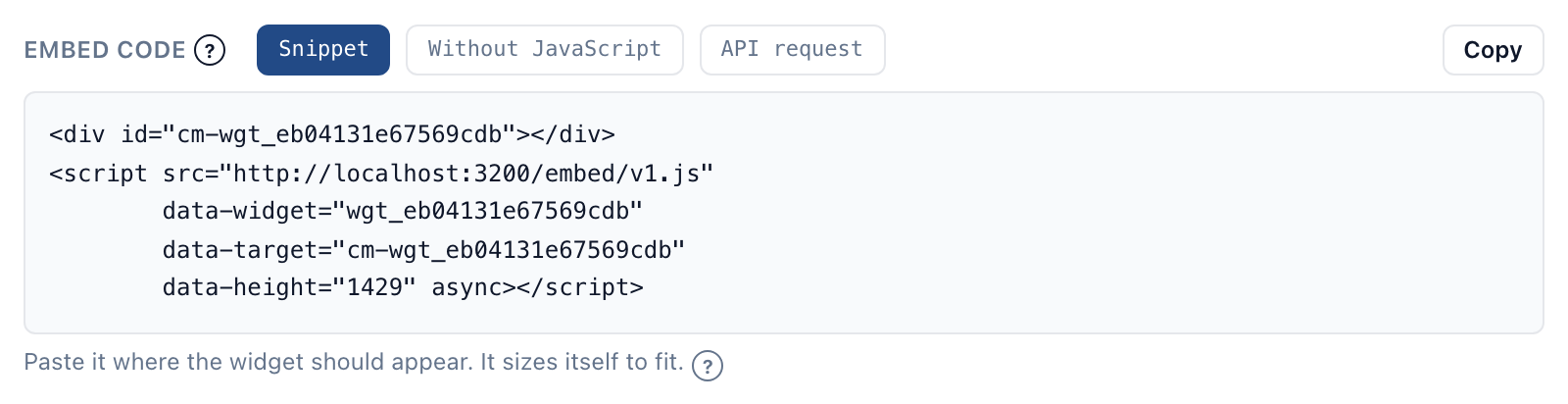
Copy the code#
- Open the widget from Integration → Widgets.
- Under Embed code, below the preview, choose Snippet — or Without JavaScript if your site strips scripts.
- Select Copy.
- Paste it into your page's HTML where the widget should appear. Most site builders and content management systems have an "HTML" or "embed" block for this.
For a published widget, Copy embed code on the list of widgets copies the snippet too.
The snippet#
<div id="cm-wgt_3f9a1c0e7b2d4a68"></div>
<script src="https://capitolmath.ai/embed/v1.js"
        data-widget="wgt_3f9a1c0e7b2d4a68"
        data-target="cm-wgt_3f9a1c0e7b2d4a68"
        data-height="412" async></script>
The script places the widget in the div and keeps its height matched to its content, so the page never shows a scroll bar inside the widget or a gap below it. data-height is the height the builder's preview measured; the widget holds that space while it loads, so the page doesn't jump.
The script does nothing else: it sets no cookies, stores nothing, and contacts nothing but CapitolMath. The widget runs in its own frame, so your site's styles can't change it, and its styles can't change your site.
A page can hold several widgets — paste each one's snippet where it belongs.
Without JavaScript#
<iframe src="https://capitolmath.ai/embed/v1/w/wgt_3f9a1c0e7b2d4a68" title="CapitolMath widget"
        style="width:100%;height:412px;border:0" loading="lazy"></iframe>
Use this when your site removes <script> tags. An iframe can't resize itself, so it keeps the height set in the builder. If the widget grows — a longer list, a bigger chart — raise the height in the code.
Sizing#
- Width. With Width set to Fill the space, the widget takes the full width of wherever you paste it; with At most 520px, it stops there. Put it in a narrower column or container to make it narrower.
- Layout follows the widget's own width, not the screen's. An Auto list becomes a table at 640 pixels and cards below; an Auto event list shows a month, a week or a schedule. Check each width with the preview's Phone, Column and Wide buttons.
- Height follows the content with the snippet, and is fixed with the iframe.
After it's on your site#
You change the widget in CapitolMath, not on your site: saving a published widget updates every page it's on. Changes reach your site within five minutes.