UsingSaved views & listsHow to
Lists
Collect bills by hand into an ordered list of up to 1,000, add several at once, reorder them, and find similar bills elsewhere.
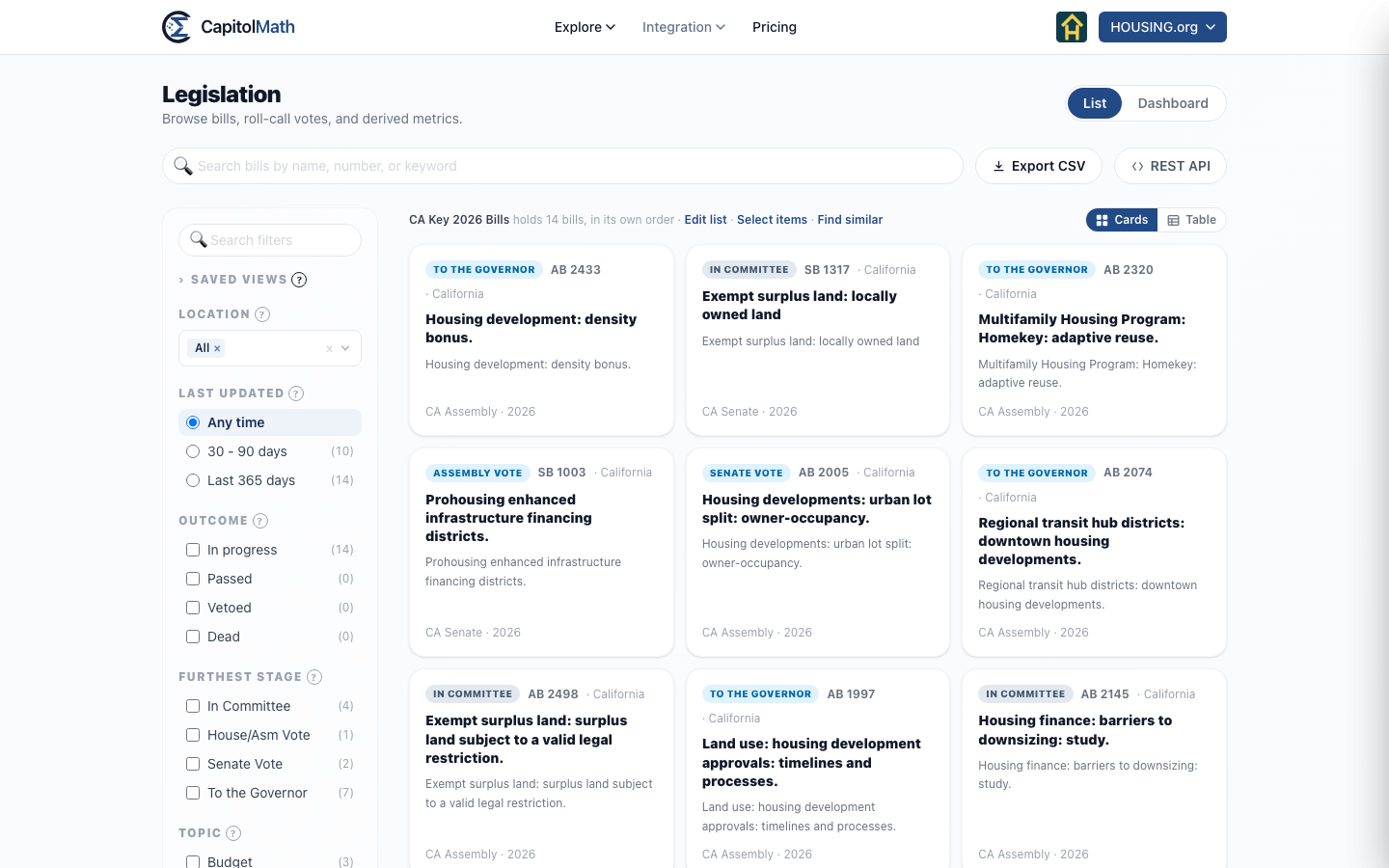
A list is a set of bills you choose by hand — "CA Key 2026 Bills", "CO Endorsed Bills" — kept in the order you put them in. It's a kind of saved view, so you share it the same way, and a widget, webhook, scorecard or API call can use it like any other view. A list holds up to 1,000 bills, from any jurisdictions. Adding bills to a list, or taking them out, pauses any webhook on it that belongs to someone else until its owner resumes it; see Whose webhook it is.
Add a bill to a list#
- Signed in, open the bill — from Legislation, the calendar, or anywhere else a bill opens in a panel.
- At the top of the panel, select Add to list.
- Select a list to add the bill to it. A list that already holds the bill is ticked; selecting it again takes the bill out. The menu stays open, so you can choose several.
- To start a list, select New list…, give it a name and select Save.
The menu shows the lists you can change. (To follow a bill, use Watch beside it.) Under the bill's title, In names every list you can see that holds it, a colleague's included; × takes it out of one you can change.
Add several bills at once#
- On Legislation, filter to the bills you want.
- Beside the count above the bills, select Select items. Each bill gets a checkbox.
- Tick the bills, or select Select all N shown.
- Select Add N to list and choose a list, or New list….
Select Cancel selection when you're done.
Open a list#
Choose it in the Saved views group, under Lists, or select its name under a bill. A list opens with only its bills, in its own order, from every jurisdiction — Jurisdiction is set to All.
Reorder or remove bills#
- With the list open, select Edit list above the bills.
- Under Bills, drag a bill to a new place, or select its × to take it out.
- Select Save. Nothing changes until you do.
The order matters: widgets and exports show the bills in it. The same dialog renames, describes, categorizes and shares the list.
Find similar bills#
Find similar, above an open list, looks for bills like the list's in other places.
- Under Where should we look?, tick the jurisdictions to search. Every jurisdiction except those the list's bills come from is ticked to begin with.
- Select Find similar bills. Each result says which bill in the list it's like, and whether it has the same text or the same subject — a title and summary that share the list bill's most distinctive title words.
- Tick the bills you want; select one to read it alongside. Then select Next: review N bills.
- Under Add them to, choose this list, Another list or A new list, and select Add N bills.
Limits#
- 1,000 bills a list. An add that would go past it is refused whole, and nothing is changed.
- Lists an organization can keep depend on its plan. When you reach the limit, CapitolMath says so — delete a list, or change plan, to make another.
- Changing a list takes a Full license, as for any saved view.