UsingGetting startedHow to
Notifications
Choose what CapitolMath tells you about and where: the bell in the app, email, or Slack or Teams; read the bell; unsubscribe from an email.
CapitolMath tells you about the bills you own or watch, and the notes that mention you, in up to three places: in the app, under the bell at the top of every page; by email; and in Slack or Teams, through a channel of your own. You choose which notifications come where, on My profile.
Choose your notifications#
- Open My profile and go to Notifications.
- Each row is something you can be told about; each column is a place it can reach you: In the app, Email and Slack or Teams. Tick the boxes you want.
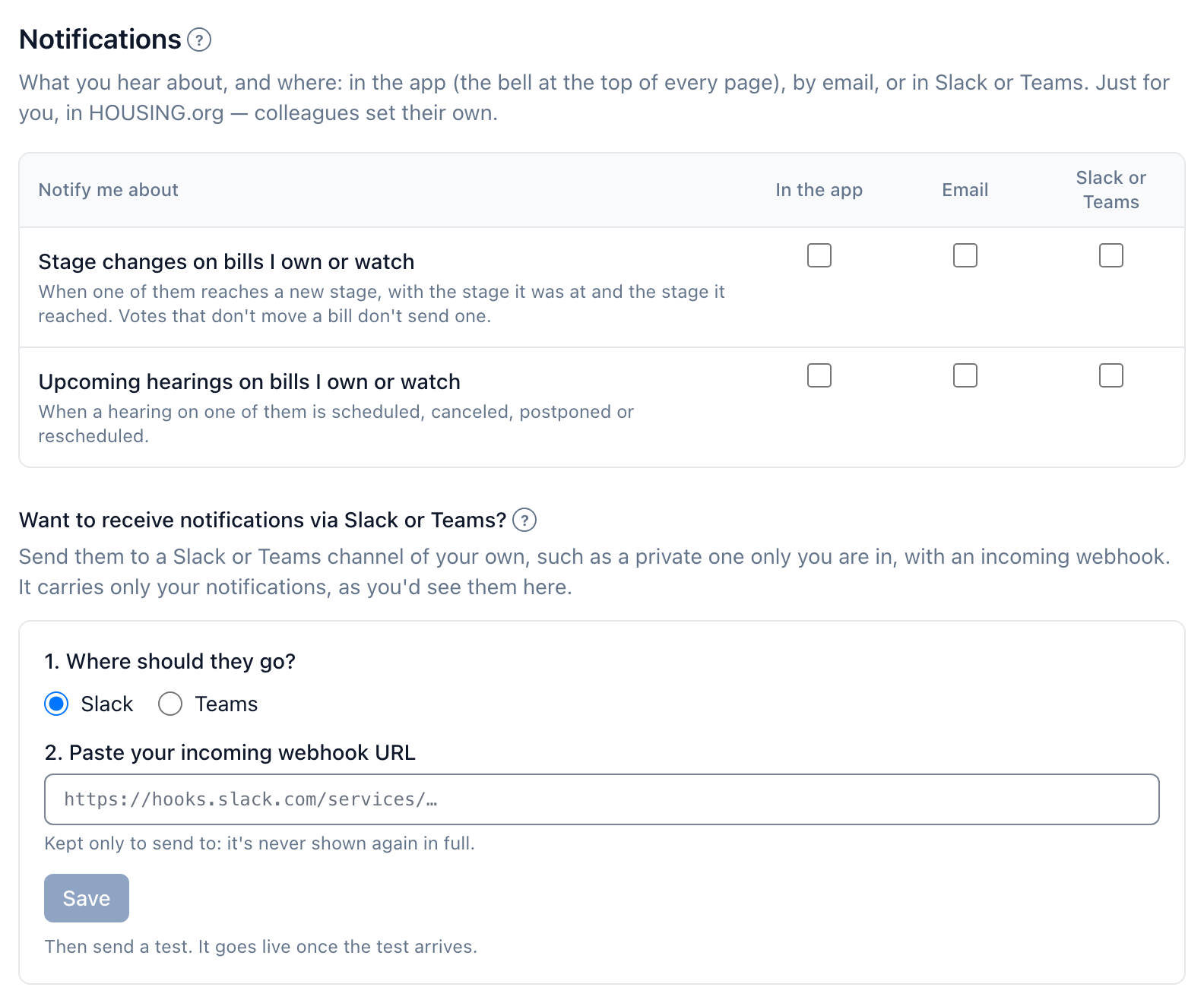
Each box saves as you tick it. Your choices are yours alone, and kept separately in each organization you belong to: colleagues set their own.
| Notify me about | Starts on |
|---|---|
| A mention | In the app and email |
| Someone else edits or deletes my note | In the app and email |
| A task assigned to me | In the app and email |
| A task due or overdue | In the app |
| Work handed to me when someone leaves | In the app and email |
| Stage changes on bills I own or watch | |
| Upcoming hearings on bills I own or watch | Off |
| A workflow rule changes a bill I own or my tasks | In the app |
| A custom field leaves or returns to my reports | In the app and email |
| Someone else's change pauses my webhook | In the app and email |
| Weekly digest | Email, with a Full license; off with a Basic license |
-
A mention comes when someone mentions you in a note on a tracked bill, naming the bill and who wrote it, never the note's text. See Notes and mentions.
-
Someone else edits or deletes my note comes when the tracked bill's owner, or someone with Manage All on notes, changes or removes a note you wrote.
-
A task assigned to me comes when someone gives you a task, naming the bill and its due date, never the task's words. See Tasks.
-
A task due or overdue comes on the morning one of your tasks is due, and the morning after if it isn't done, in your organization's time zone.
-
Work handed to me when someone leaves comes when a member leaves and their tracked bills or open tasks come to you, with how many of each.
-
Stage changes come when a bill you own or watch reaches a new stage, with the stage it was at and the stage it reached. Votes and other actions that don't change a bill's stage don't send one. Neither does CapitolMath loading a bill's earlier history or changing only how a stage is written.
-
Upcoming hearings come when a hearing on one of those bills is scheduled, canceled, postponed or rescheduled, with the time in the meeting's own time zone, as the notice gives it. Hearings come only from legislatures whose committee agendas CapitolMath carries; see About the calendar.
-
A custom field leaves or returns to my reports comes when someone makes a custom field one of your reports shows as a column inactive, or deletes it, so the column is left out, and again when it's reactivated and the column comes back. It names the field and how many of your reports, never a value. See Reports.
-
Someone else's change pauses my webhook comes when someone else changes the filters of a saved view one of your webhooks sends from, the bills in a list it sends from, or a scorecard its view rates by, so the webhook pauses until you review it and resume it. It names the webhook and who changed the view, never the view's filters. See Whose webhook it is.
-
A workflow rule changes a bill I own or my tasks comes when one of your organization's automation rules sets the status of a tracked bill you own, or cancels or completes its open tasks (or tasks assigned to you). It names the bill and what changed, never a task's words, and offers Undo in the bell for 7 days.
-
Weekly digest comes Monday morning, in your time zone (set on My profile): last week and the week ahead on the bills you own or watch. It covers what changed on them, who mentioned you where, your tasks due and overdue, this week's hearings with your bills, what waits in your Inbox, and what you're waiting on from others. It never includes a note's text or a task's words. It's written by an AI model and checked against the facts in code; when it doesn't pass, or an Owner or Admin has turned off writing it with AI, you get the facts instead. It's on by default with a Full license and off with a Basic one; your choice stands if your license changes. It's a summary on top of your other notifications, never in place of them, and a quiet week sends nothing. An Owner or Admin can turn it off for the whole organization. It replaced the weekly My work email, and that email's unsubscribe link turns off the digest. See My work and the Inbox.
Each bill appears once however you follow it: owning it and watching it doesn't double anything. Several changes from one update are gathered into one email.
The bell#
The bell at the top of every page shows how many notifications you haven't read, and the newest of them when you select it. Unread ones are in bold.
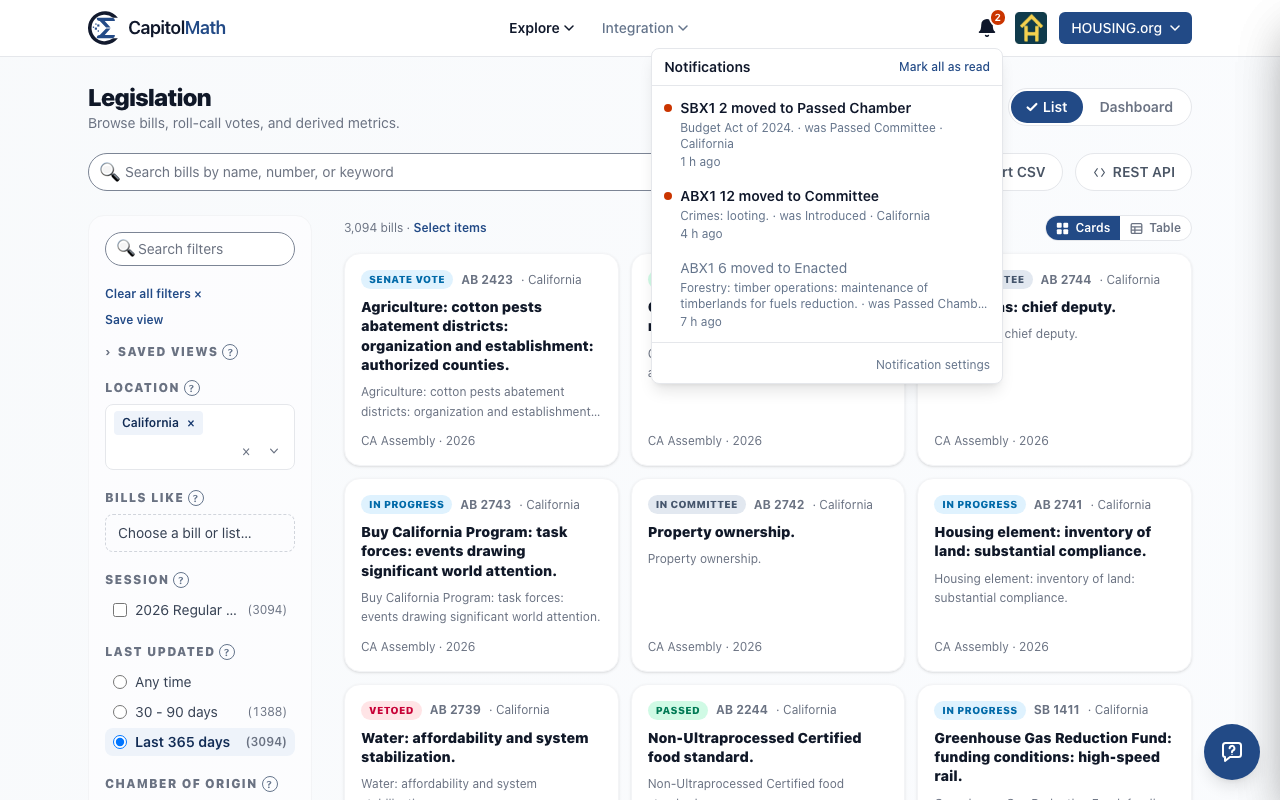
- Select a notification to open what it's about. It's marked read.
- Mark all as read clears the count.
The bell shows the notifications you've chosen In the app for, in the organization you're working in. Read notifications are kept for 90 days.
Unsubscribe from an email#
Every notification email ends with Unsubscribe from these emails. One click turns that kind of email off, in each organization it came from, and you'll still see those notifications wherever else you chose them. Your mail program's own unsubscribe button does the same. To turn the email back on, tick its box again on My profile.
Slack or Teams#
To have notifications posted to a Slack or Microsoft Teams channel of your own, set up an incoming webhook for yourself and add it under Want to receive notifications via Slack or Teams? on My profile. See Notifications in Slack or Teams.