TrackingTracked itemsHow to
Custom fields
Your own fields on every tracked bill (text, number, money, date, yes/no or a choice from a list), kept in its history and shown to clients only when you say so.
Custom fields are your organization's own fields on every tracked bill: Fiscal impact, Program affected, Analyst, Testimony due. Each has one type, and its values are kept as that type, so amounts add up and sort as amounts and dates as dates.
| Type | Holds |
|---|---|
| Text | A line of text, up to 500 characters, such as an analyst's name |
| Number | A number, such as jobs affected |
| Money | An amount in dollars and cents, such as fiscal impact |
| Date | A date, such as testimony due |
| Yes/no | Yes or no |
| Choice from a list | One choice from a list you set, such as the program a bill affects |
Custom fields are on the State and Developer plans (up to 5) and on Pro and Scale (up to 20).
Adding and changing fields#
Fields live on the Organization page under Workflow › Custom fields. Members with Manage workflow settings (Owners and Admins by default) change them; everyone else sees them read-only. The heading shows how many your organization has of your plan's limit.
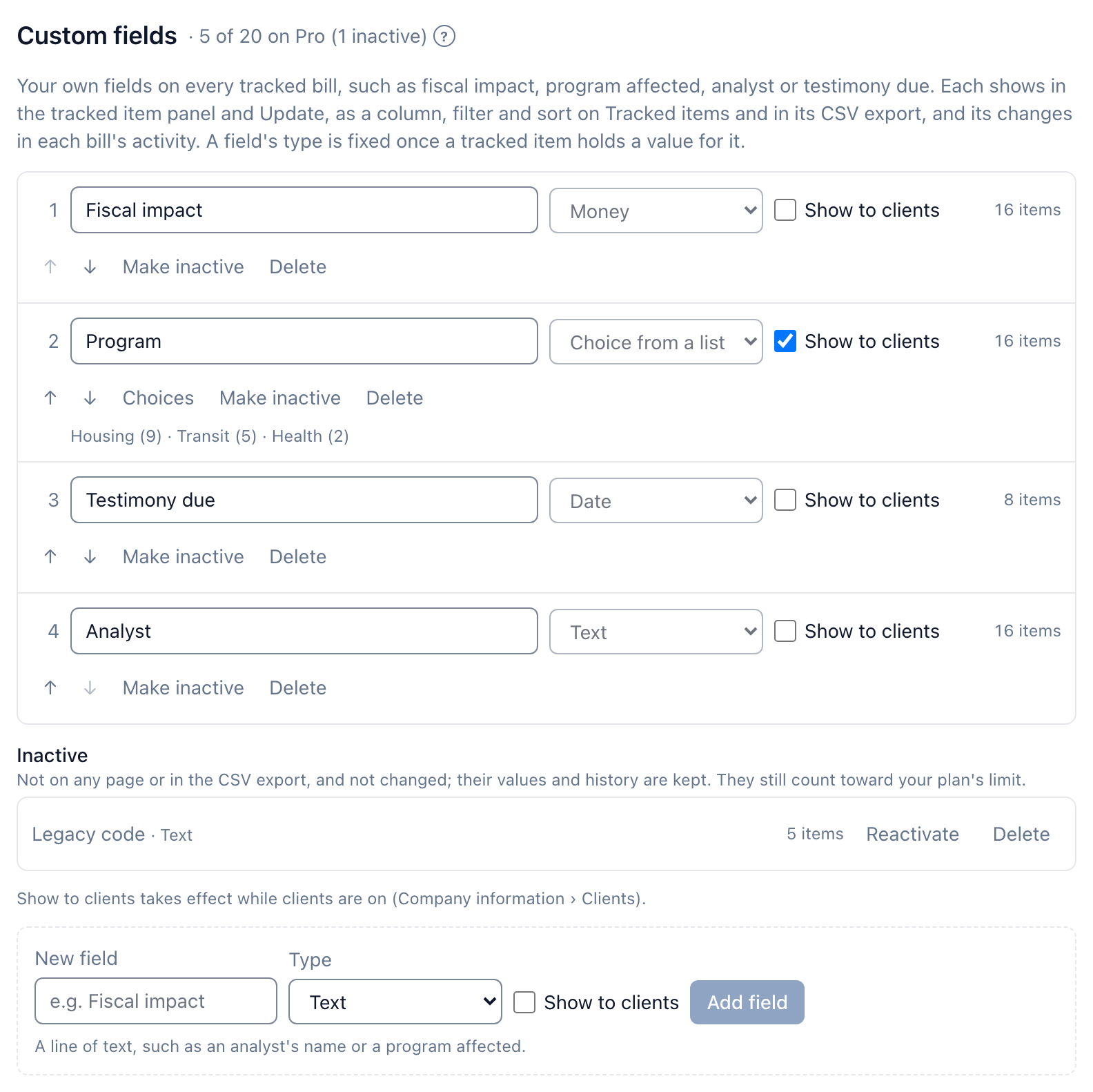
- Under New field, type its name and choose its Type. For a choice from a list, list the choices, one per line.
- Select Add field. It goes last; move fields up and down with the arrows. The tracked item panel and Update show them in this order.
- Rename a field by typing over its name.
A field's type is fixed once a tracked bill holds a value for it. To change it, clear those values first, or add a new field of the type you need. Nothing is converted.
For a choice from a list, Choices opens its list: rename a choice (it's renamed on every tracked bill that holds it), move it, or add one. A choice that a tracked bill holds can't be removed. Rename it, or change those bills first.
Removing a field#
A field that tracked bills hold values for can't be deleted. Delete says how many hold one, and offers two ways out:
- Make inactive. The field leaves every page: the tracked item panel, Update, Tracked items and What changed. It's left out of Export CSV, can't be changed, and client members never see it, even with Show to clients on. Its values and history are kept, and the field moves under Inactive, where Reactivate brings it back with everything it held. While it's inactive it can't be renamed or otherwise changed. If its Show to clients switch is on, Reactivate asks first, since client members will see it again. Saved views that filter or sort by it stop doing so while it's inactive, and its column leaves every report that showed it until it's reactivated; each report's owner is told. Inactive fields still count toward your plan's limit; the heading says how many are inactive.
- Clear its values first. The dialog links to Tracked items filtered to the bills that hold a value for the field. Select them all, choose Update, then Clear for the field. Once no bill holds a value, Delete removes it. If some of those bills aren't shared with you, or belong to a client that's archived or deleted, the dialog says how many you can open: clearing the rest takes someone who can see every tracked bill, or restoring the client.
A field no bill holds a value for is deleted after a confirmation. Each bill's activity keeps its past changes, as a custom field since deleted, and its column leaves every report that showed it; each report's owner is told. Past changes to an inactive field still show in each bill's activity, under the field's name.
Automation rules can start from a choice, yes/no, number or money field (Automation rules). While one does, the field can't be deleted, a choice the rule names can't be removed, and the field's type can only change between number and money; change or remove the rule first. Making the field inactive pauses its rules until you reactivate it.
If your organization moves to a plan with fewer custom fields, nothing is deleted. The newest fields past the limit become read-only, shown but not changed, until you delete some or move back up.
Setting a value#
Open a tracked item. Its custom fields follow Tags in Our work, one control for each. Text, numbers and amounts save when you leave the box or press Enter; dates, yes/no and choices save when you pick one. Clear a value by emptying the box or choosing Not set.
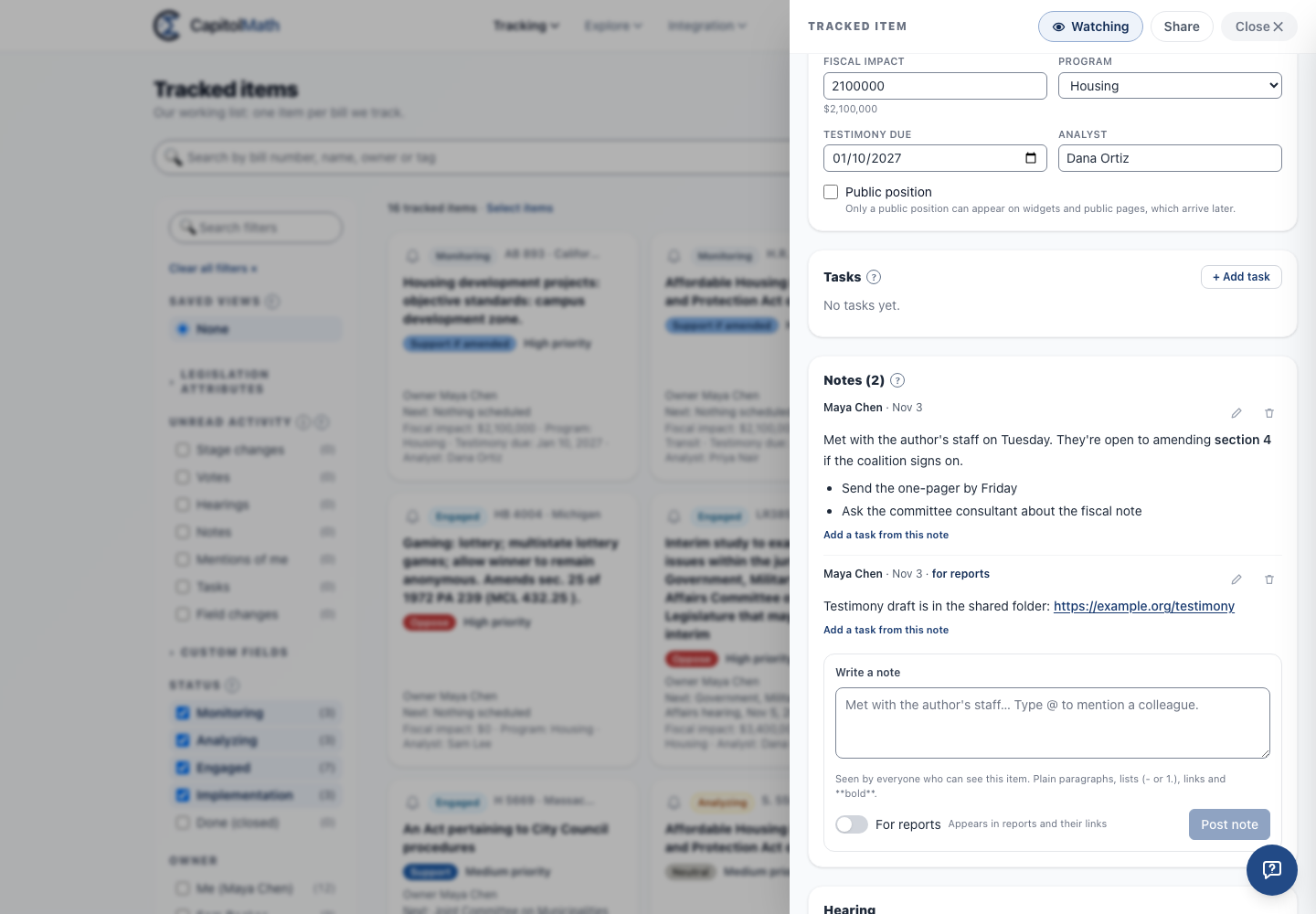
Setting a value takes the same permission as a tracked bill's other fields: Update on Tracked items, with a Full license by default. Without it, you see each value but can't change it.
On several bills at once#
Select tracked items on Tracked items and choose Update. Each custom field starts at No change: choose a value (or Set to… and type it), or Clear. As with every field, each change is checked on each bill before anything is saved, bills already at the value are left alone, and Undo puts it back for 15 minutes. See Tracked items.
On Tracked items#
On Tracking › Tracked items, each custom field you can see is:
- A column in the table. Select its heading to sort by it: amounts and numbers by size, dates by date, choices in the field's own order, yes before no; bills with no value come last either way.
- A line on each card, listing the fields that hold a value.
- A filter, under Custom fields on the left (collapsed until you open it; its heading says how many are on). Text fields take contains; numbers, amounts and dates take a range, either end left open; yes/no and choices are checkboxes with counts, including Not set for bills without a value.
- A column in Export CSV, headed by the field's name, with numbers and dates plain for a spreadsheet.
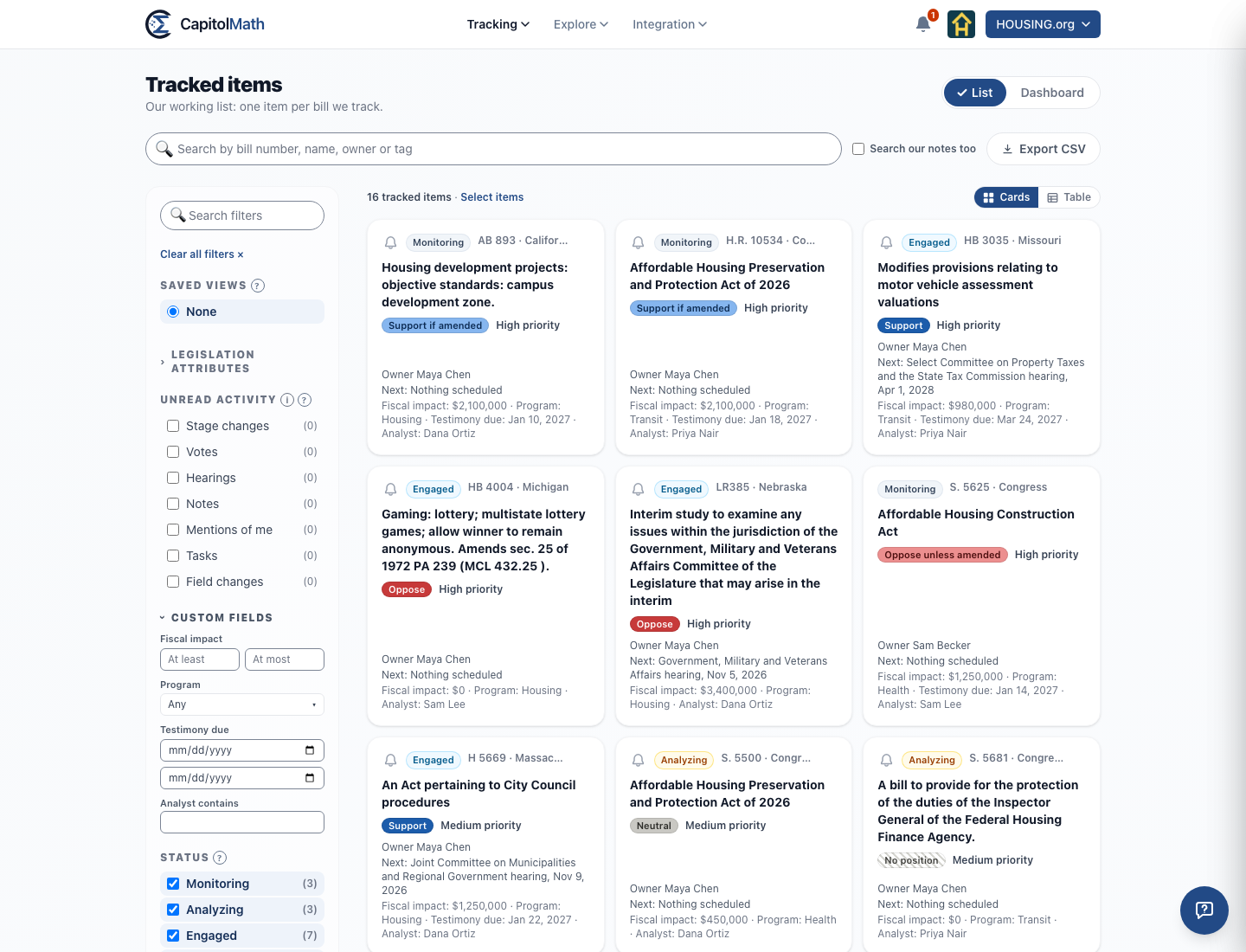
Saved views keep custom field filters and sorting, by the field rather than its name, so renaming a field or a choice doesn't change what a view shows. If a field is deleted, views that filtered or sorted by it simply stop doing so. A report on a view follows the values as they change.
History and unread changes#
Every change to a custom field is kept in the tracked bill's Activity, by the field's name: Testimony due changed from Mar 4, 2027 to Mar 11, 2027, with who made it and when. For the bill's owner and watchers it's an unread change, with a chip named after the field, and What changed lists it. See Unread changes.
The audit log records which fields changed on which bill, never the values: those stay with the bill.
Show to clients#
With clients turned on, client members see a tracked bill's position, and what your organization chooses to show them. Each custom field has its own Show to clients switch, off until you turn it on.
- Off: client members never see the field: not its value, its changes in Activity, or the field itself.
- On: client members of a client see its value on that client's tracked bills, read-only, and its changes.
Turning it off hides the field from client members at once. See Clients.
Who can do what#
- Everyone in your organization but client members sees the custom fields on the Organization page.
- Members with Manage workflow settings add, rename, reorder, edit choices, show to clients and delete them.
- Members with Update on Tracked items set values, on the bills they can see.
- Client members see only fields marked Show to clients, and never change them.