TrackingTracked itemsHow to
Automation rules
Let the public record move your work: set a tracked bill's status when its bill is signed, vetoed or dies or a custom field changes, and cancel or complete its open tasks, each change undoable for 7 days.
Applies toOwner · Admin
Automation rules let the public record move your organization's work. When a bill is signed, its tracked bill can move to Implementation without anyone touching it. When a bill dies, its open tasks can be canceled. Every rule is off until you turn it on, and each change a rule makes is marked as the rule's, told to the people it affects, and can be undone for 7 days.
Rules live on the Organization page under Workflow › Automation. They're on the Pro and Scale plans.
Two kinds of rule#
| Rule | When | Then |
|---|---|---|
| Status rule | The bill is signed or chaptered, is vetoed, fails or dies, passes its first chamber, is sent to the governor, or is set for a committee hearing, or one of your custom fields changes (below), and its tracked bill is in any open status, or one status you choose | Set the tracked bill's status to the status you choose |
| Task rule | The tracked bill's status becomes a status you choose (set by a person or by a status rule), the bill is signed, vetoed, fails, passes its first chamber or is sent to the governor, or one of your custom fields changes | Cancel its open tasks, or mark them complete |
In the legislatures listed in Amendments, a status rule can also follow an amendment: the bill has an amendment adopted runs when the record says an amendment to the bill was adopted. It runs once for each amendment, never for one a committee only recommended, and never for amendments CapitolMath records from a legislature's earlier sessions. Its preview lists no bills, and Apply to these now changes none: it follows amendments adopted from now on. If the record later reverses an adoption, what the rule did stays, and if the amendment is adopted again, the rule doesn't run a second time.
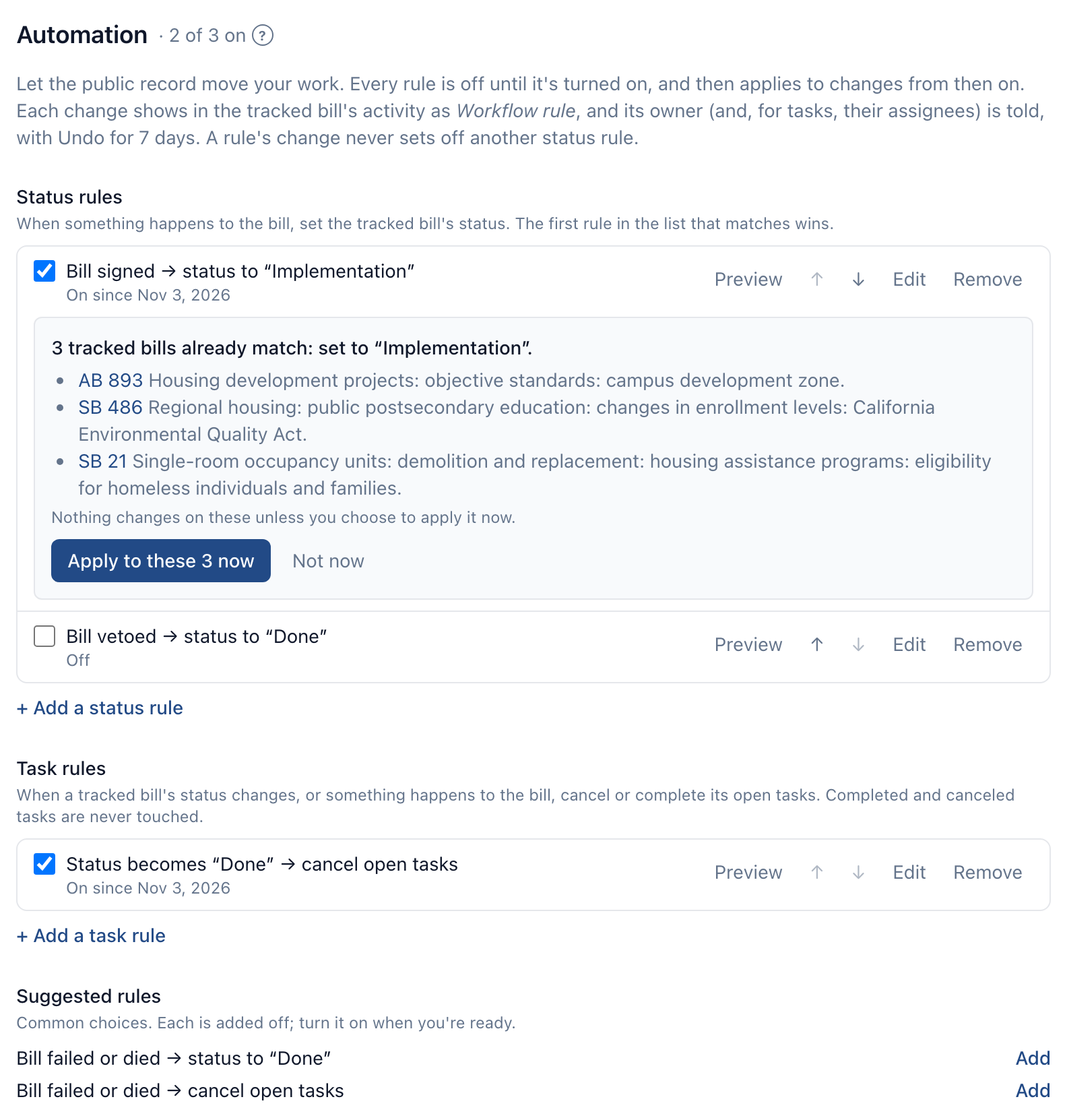
A few rules to start from are suggested under Suggested rules: Bill signed → Implementation, Vetoed → Done, Fails or dies → Done, Status becomes Done → cancel open tasks and Fails or dies → cancel open tasks. Each is added off.
Rules that start from a custom field#
A rule can start from one of your organization's custom fields instead of something that happens to the bill. Choose a custom field changes… as the rule's When, then the field and the change:
| Field type | The rule starts when the field… |
|---|---|
| Choice from a list | is set to the choice you pick, from any other choice or from no value |
| Yes/no | turns yes, or turns no (from the other answer or from no value) |
| Number or money | reaches an amount (goes from below it, or from no value, to the amount or more), or drops below it (goes from the amount or more to less) |
So “Jobs affected” reaches 500 → status to “Engaged” moves a tracked bill to Engaged when someone enters 500 jobs or more. A money field such as Fiscal impact works the same way, with an amount in dollars. “Testimony needed” turns no → cancel open tasks closes the tasks once nobody needs to testify. Text and date fields can't start a rule.
- It runs on a real change, once. Setting a field to the value it already has does nothing, and moving an amount that's already over the line (from 600 jobs to 700) isn't reaching it again. Clearing an amount never counts as dropping below it.
- People's changes start it: in the tracked item panel, with Update on selected tracked bills, and with that Update's Undo, which is a change of its own. A rule's change never sets a custom field, so it can't start another rule: one pass, no chains.
- The status you choose stands. If one save sets a tracked bill's status and changes a field, the field's status rules leave the status as you set it. Its task rules still run, and so do the task rules for the status you chose, once.
- A field not shown to clients can start a rule, including a rule for one client: rules run as your organization. Client members never see the rules, and the change reads to them only as Workflow rule, without the rule's words.
- An inactive field pauses its rules. While a field is inactive, its rules run nothing, and each reads Paused in the list, with no preview. Reactivate the field and they resume, from then on.
- The field stays as the rule needs it. While a rule starts from a field, the field can't be deleted, a choice the rule names can't be removed, and its type can only change between number and money. Change or remove the rule first; the refusal says how many rules use it.
The preview and Apply to these now read each tracked bill's value as it is now: “Jobs affected” reaches 500 lists the bills with 500 or more, and drops below the bills under it. A bill the rule already acted on isn't listed again until its value leaves the condition and comes back. Editing the value within it, putting the status back by hand, adding tasks or undoing an edit doesn't count, just as a bill event runs a rule once.
Rules for one client#
With clients on, every rule has a For: Every tracked bill (the default), or one client. A rule for a client acts on that client's tracked bills only, never another client's and never your own work, so Bill signed → Implementation can apply to one client while another keeps its own process. A rule for every tracked bill acts on each client's and your own, as rules did before clients.
The preview and Apply to these now follow the same scope: a rule for a client lists and changes that client's tracked bills only. You can add the same trigger once for every tracked bill and once for each client; when more than one matches a bill, the first in the list still wins, so put a client's rule above the rule for every tracked bill.
You choose from the active clients you can see. A rule for a client you can't see shows only as A rule for a client you can't see, in its place in the list: you don't see its trigger or settings, and only someone who can see that client changes, previews, applies, turns on or off, removes or moves it. Reordering moves the rules you can see around it. Rules leave the tracked bills of an archived or deleted client alone until it's active again, and a client's rules are erased with it. See Clients.
A bill dies when its session adjourns without passing it. A bill still waiting for the governor's signature dies when the signing window closes, 90 days after adjournment, as the Dead outcome on Legislation counts it.
Adding and turning on a rule#
- On the Organization page, go to Workflow › Automation.
- Under Status rules or Task rules, select + Add a status rule (or task rule), choose its trigger and what it does, and select Add rule. The form reads the rule back to you as you choose, such as "Bill signed → status to “Implementation”".
- Check the box beside the rule to turn it on. It applies to changes from then on. It never changes anything retroactively on its own.
- Turning a rule on opens its preview (below). Choose Not now to leave the bills that already match as they are.
Edit changes a rule's trigger, scope, client or action; a rule that's on stays on. Remove stops it at once. What it already changed stays in each bill's activity, still named, and can still be undone for its 7 days.
The order of status rules#
When two status rules match one tracked bill, the first in the list wins. Move rules up and down with the arrows. A narrower rule ("Vetoed, from Engaged → Done") belongs above a broader one ("Vetoed → Monitoring").
A status rule never moves a tracked bill out of a closed status unless you chose that status as the rule's scope, and task rules touch only open tasks, never ones already completed or canceled.
One pass, no chains#
Each change runs the matching rules once. A bill event, or a person's change to a custom field, runs the status rules, and the status a status rule sets can run task rules. Nothing a rule does runs another status rule or changes a custom field, so rules can't loop. A person changing a status runs the task rules for it, just as a status rule's change does, and so does putting a status back with Undo after Update on selected tracked bills, since that's a change of your own.
Applying a rule to bills that already match#
Preview on a rule (and turning one on) lists, by bill number, the tracked bills it would change now: those already signed, say, for Bill signed → Implementation, or those in the status with open tasks, for a task rule. Bills not shared with you are counted, not named. Select Apply to these N now to make those changes. Each is marked as the rule's and can be undone, as any rule change can, and the audit log records who chose it. It applies to at most 500 tracked bills at once and says how many are left. Apply it again for the rest.
What a rule's change looks like#
- In the tracked bill's activity, as Workflow rule, with the rule in words and the event as its reason: "Status changed from Engaged to Implementation" · bill signed · Workflow rule: Bill signed → status to “Implementation”. A custom field's rule gives the change as its reason: Jobs affected reached 500. Tasks it closed say Canceled a task or Completed a task by the rule. Client members see neither the rule's words nor the reason.
- Unread for the bill's owner and watchers, with a Status chip (or Task), since someone else changed it. See Unread changes.
- Told to the tracked bill's owner, and for a task rule to the tasks' assignees too, under A workflow rule changes a bill I own or my tasks (in the app to start with; see Notifications). Someone who can't see the client a rule is for is told of the change without the rule's words or an Undo.
- Audited: every rule turned on, off, changed or removed, and every change a rule made, in the audit log.
With a status rule on for an outcome (signed, vetoed, or fails or dies), the bill's owner is no longer asked Move to Implementation? or Move to Done? for it. Outcomes no rule covers still ask. See The tracked item panel.
Undoing a rule's change#
For 7 days, a rule's change can be undone from its notification (Undo in the bell) or from its entry in the tracked bill's activity. Undo puts back exactly what the rule did, once: the status it was in, or the tasks reopened. If someone has changed the status since, or the tasks, there's nothing left to undo, and it says so. The rule doesn't run again for the same event, and undoing a rule's change runs no other rules.
Undoing a status needs permission to update tracked items; undoing tasks needs permission to update tasks, as the bill's owner, an assignee, or with Manage All on Tasks.
Who can do what#
- Everyone in your organization but client members sees the rules.
- Members with Manage workflow settings (Owners and Admins by default) add, change, reorder, turn on and off, remove and apply rules. Others see the section read-only, with the reason.
- Automation rules are on the Pro and Scale plans. On other plans the section reads Not on your plan, and rules don't run. See Plans and billing.
- An organization can have up to 25 rules of each kind.