TrackingTracked itemsHow to
The tracked item panel
Open a tracked item to set its position, priority, status, owner, watchers and tags, write notes, answer its outcome prompt, and read its activity beside the public record.
Select a tracked item's name on Tracked items, or its row in a bill's Tracking list on Legislation, and its panel slides in from the right, over the list. The list stays as it was underneath: close the panel with Close, by selecting the dimmed page beside it, or with Escape.
At the top, Watch follows the item, and Share shows who it's shared with. Owners always follow their own items. Sharing gives view access only: what each person can change depends on their license and permissions. An item's creator, its owner and anyone with Manage All change its sharing.
The bill's number and title open the bill's own panel over this one, with everything on Legislation; close it to come back. Official page opens the bill on the legislature's site.
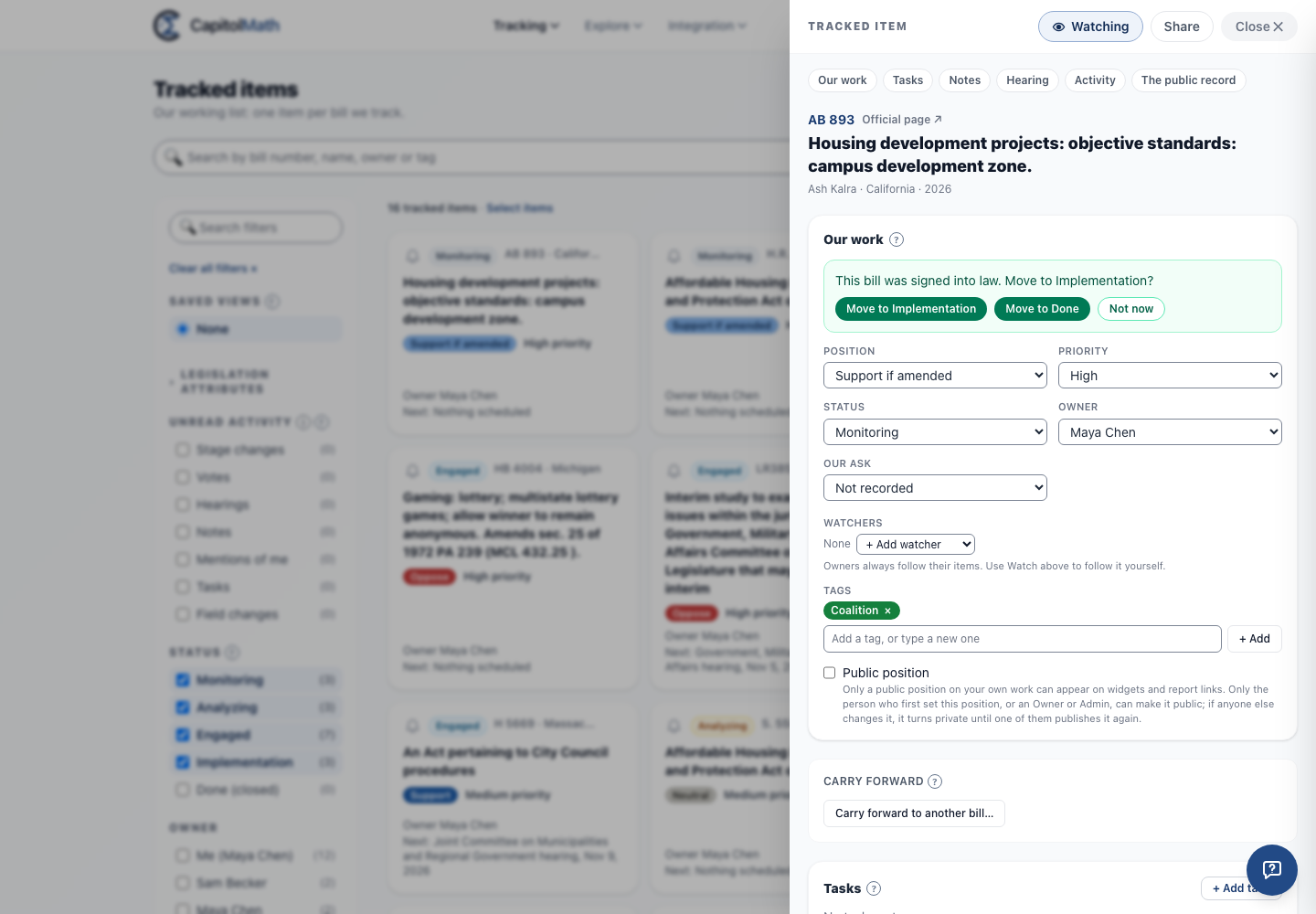
Our work#
- Choose a Position. Before it's saved you can say why ("after the board vote"); the reason is kept with the change.
- Set Priority and Status. Status is your own process, separate from the bill's legislative stage.
- Choose the Owner: anyone with a Full license who can see the item. Reassigning takes being its owner, or Manage All.
- Add Watchers and Tags. With a Full license you can create a tag by typing a new name.
For a position that asks for an amendment, Our ask records whether the amendment was adopted; it's the owner's to set. Public position marks the position as one your organization states publicly, on the State plan and up. Only a public position on your own work can appear on a widget or on a report link opened without an account.
Who can make a position public. Only the person who first set this position, or an Owner or Admin, can make it public. The person who first set it is whoever tracked the bill with a position, or, if it was tracked with no position, whoever set one first; that never changes, so they can publish the current position even after a teammate changed it. For anyone else the switch can't be turned on, and says who can; anyone who can edit the bill can turn it off. If anyone else changes a public position, it turns private in the same change, and the bill's activity says so. It stays private until the person who first set it, or an Owner or Admin, makes it public again (an Owner or Admin changing it can keep it public in the same change). This applies everywhere a position changes: the panel, Update on several bills, Undo, and the API. So a changed stance is never published without them.
Clients' tabs and conflicts#
With clients turned on, a bill can be tracked once for your own work and once for each client, each with its own position, priority, status, owner, tags, notes and tasks. When you can see more than one of them, Our work starts with a tab for each: Our own work and each client by name. Select a tab to switch to that client's tracked item. A client you could track the bill for, but haven't, has a dashed tab marked (not tracked); select it, then Track for the client, to open Track with that client filled in.
When one client supports a bill another opposes (Support or Support if amended against Oppose or Oppose unless amended), both items carry a conflict mark (⚑), and Our work says Conflicts with the other client and its position. CapitolMath flags conflicts; it never blocks them. A conflict with a client whose item you can't see is counted ("and 1 other client") without naming it.
Client members see their own client's item only: its position, and its status and tags when your organization shows them to clients, never its priority, owner, watchers, tasks, sharing or conflicts.
Each change is saved as you make it. Without permission to change something, the control is shown but can't be changed, and says why.
Tasks#
Under Tasks, the item's tasks are listed soonest first, each with who it's assigned to and when it's due. Check one off when it's done. + Add task adds one, due on a date or a number of days before an upcoming hearing on the bill; under a note, Add a task from this note starts one from it. The Hearing card after Notes lists the bill's upcoming hearings, each with Add a task for each tracked bill on this agenda. See Tasks.
Notes#
Under Notes, anyone who can see the item reads its notes and writes their own, mentions a colleague with @, and marks a note For reports. The note's author edits it; the author, the item's owner and Manage All delete it. See Notes and mentions.
When the bill reaches an outcome#
When a bill you own is signed, vetoed or dies while its item is still open, the panel asks Move to Implementation? (or Move to Done?). Choose either, or Not now to keep the status. The Outcome reached, still open filter on Tracked items finds these items later.
If your organization has an automation rule on for that outcome, you aren't asked: the rule moves it, and the change shows in Activity as Workflow rule, with Undo for 7 days. See Automation rules.
Carry forward#
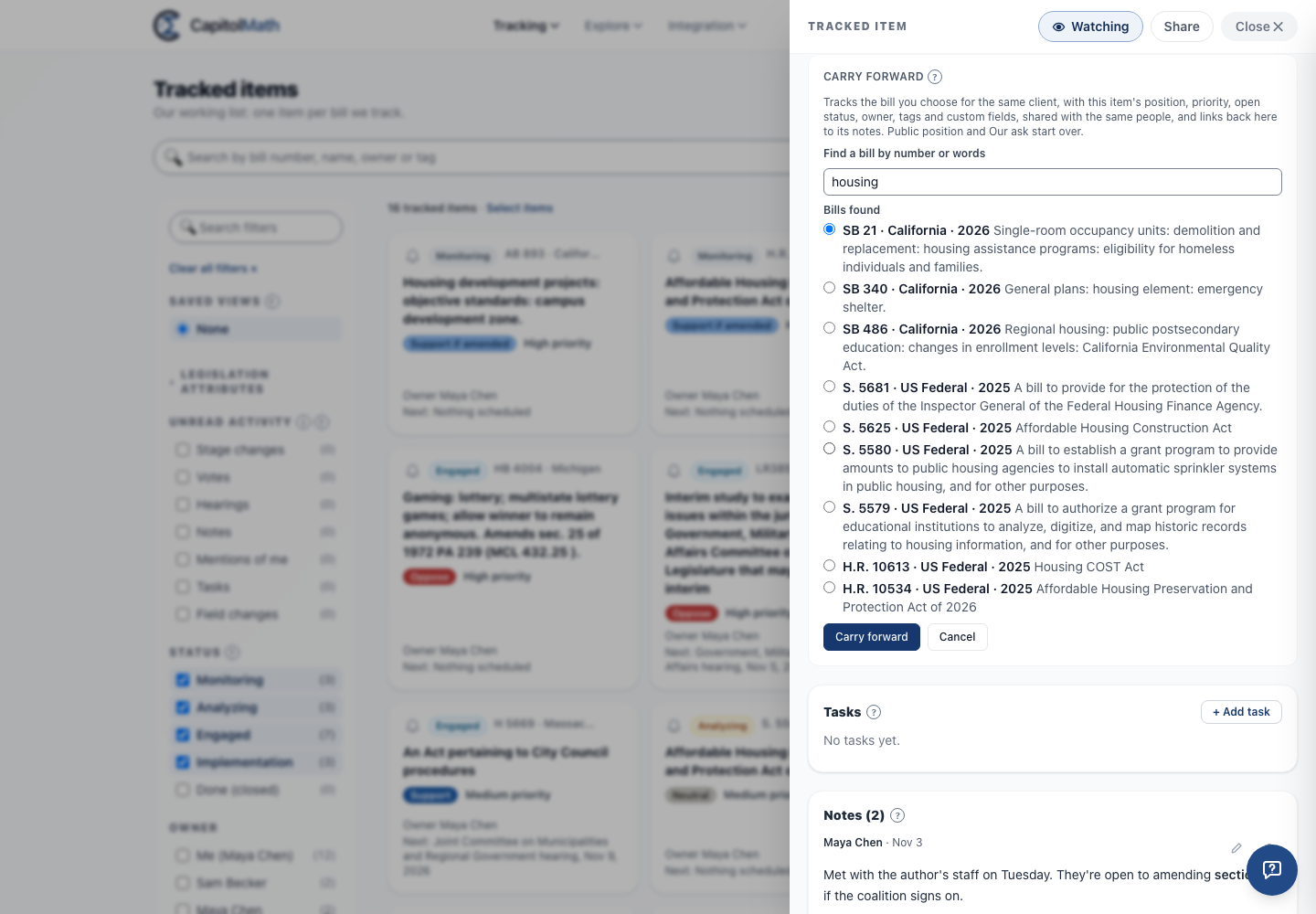
When a bill dies and its idea comes back in a later session, carry the tracking forward. On the panel's Carry forward card, choose Carry forward to another bill…. Then pick one of the bills suggested by Bills like in the same legislature's later sessions, or find the bill by its number. Carry forward tracks it:
- for the same client (or your own work);
- shared with the same people, no more;
- with the position, priority, owner (if they can still own it), tags and custom fields;
- with the status, if it's an open one; a closed one starts over at your first open status.
Public position and Our ask start over, because they were about the old bill. The new item links back: its card reads Carried forward from … with how many of the earlier item's notes you can read, and opens it. The earlier item reads Carried forward to …. Each link shows only to people who can see the other item. You need to be able to track bills to carry one forward, and a bill already tracked for that client can't be the successor.
Activity: the record and ours#
Activity: the record and ours lists the legislature's actions on the bill beside your organization's own changes and notes, newest first, each marked Record or Ours, with who made it and any reason given.
Other information about the bill has a link for each section of the bill's own panel, such as Summary, Full text, Public activity and Amendments. Choose one and the bill's panel slides out over this one at that section. Only the sections the bill has are listed. The card also shows the bill's next scheduled step and ends with CapitolMath Ingest History, which opens a drawer of its own over the panel showing how CapitolMath recorded each published value about the bill and where it came from. Close it with Close or Escape and you're back at the link. It never shows your organization's own work.