TrackingTracked itemsHow to
Logging a meeting
Write down a meeting with an official or committee from your phone: who, when, the bills discussed and what was said, kept safe on the phone until there's a signal.
Most meeting notes get written minutes after the meeting, standing in a hallway. Log a meeting is one short form built for your phone, and it keeps your note safe even when the signal drops.
Opening it#
- On an official's or committee's panel, under Our work, choose Log a meeting. Who you met is filled in.
- On a hearing's panel, Log a meeting logs it with the hearing's committee.
- On your phone, open the menu at the top of any page and choose Tracking › Log a meeting, then search for who you met.
Filling it in#
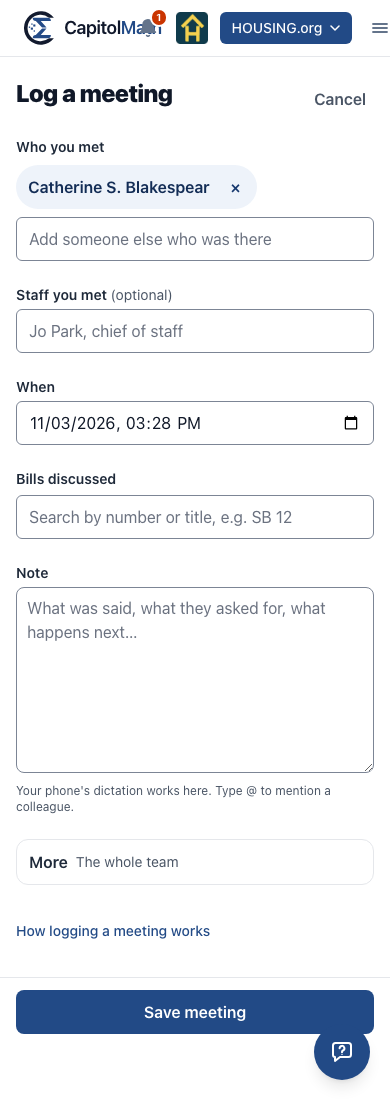
- Who you met: the official or committee, and anyone else who was there (search by name). Type staff names under Staff you met.
- When: now, unless you change it.
- Bills discussed: search by number or title. Your tracked bills come first. The note shows on each bill you choose, and linking a bill never tracks it.
- Note: what was said, what they asked for, what happens next. Your phone's own dictation works here, and
@mentions a colleague. - Under More: who sees it (your organization's default is filled in: the whole team, a group, or only you) and For reports.
- Choose Save meeting.
Afterwards, Add photos or files attaches a photo of a handout (your phone offers its camera) or the one-pager they gave you to the meeting's note; each is scanned for malware before anyone can open it. Add a task starts a follow-up ("Send the one-pager to the chief of staff"), and Done takes you back to where you started. The meeting appears under Notes and meetings on the official's or committee's panel, with when and who.
When the signal drops#
Everything you type is saved on your phone as you go, so closing the page or losing the signal loses nothing: open Log a meeting again and you pick up where you left off.
If there's no connection when you save, the form says Saved on this phone, not yet sent. Your meeting is sent as soon as you're back online, from whatever CapitolMath page you have open, and it's sent once even if you save it twice. Until then it stays on your phone and goes nowhere else. Files are attached once the meeting is sent: add them from its note on the official's or committee's panel.
Logging out clears every meeting saved on the phone, sent or not, so on a shared phone nothing is left behind. If something is still waiting, get back online and let it send before you log out. If someone else signs in on the same phone, your unsent meetings are deleted, not sent as theirs.
If a saved meeting can't be sent (say, a group you chose no longer exists), the form lists it under Saved on this phone, not yet sent with Couldn't be saved: fix it.