TrackingTracked itemsConcept
Tracked items
Your organization's working list of tracked bills: filter, sort and save views, switch to cards, a table or the dashboard, and update several at once.
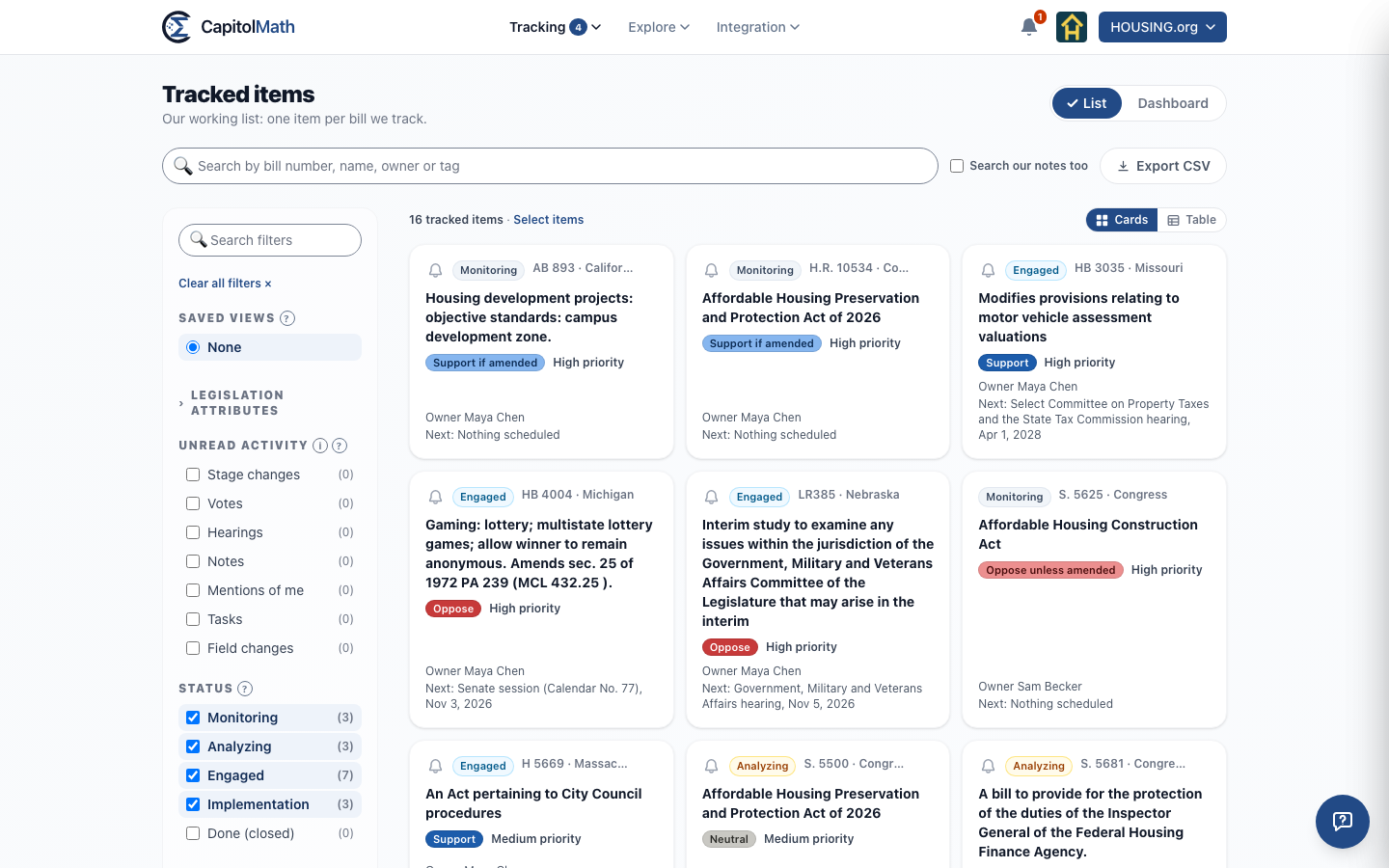
Tracked items is your organization's working list: one entry for each bill you track, with your position on it, its priority, where it stands in your own process, and who owns it. Open it from the Tracking menu at the left of the header. It works like the other list pages: filters on the left, the list on the right, and each item opening in a panel over the list.
Everyone in your organization with Read on Tracked items sees the items shared with them. A tracked item is shared with the whole team unless its owner changes that. What you can change follows your license and permissions: a Full license with Update on Tracked items changes positions, priorities, statuses and tags, and reassigning an item takes being its owner or holding Manage All. A Basic license reads.
Searching and filtering#
The search box matches a bill's number and name, its client, its owner and its tags. Tick Search our notes too to also find items whose notes contain your words, among the notes you can read; it saves with your view. See Notes and mentions. Select Export CSV beside it to download the items shown, with the table's columns and each item's watchers. Exporting needs Export to CSV on Tracked items, which a Full license has by default. REST API beside it shows the GET /v1/tracked-items request that returns the same items, for your own tools; a saved view you haven't changed is named in it, so it follows later edits. A key returns what its creator can see. See API quickstart.
Filters#
The filters on the left combine with each other, and each count assumes the others as they are set, so a count is how many items checking that box would show.
- Client, with clients turned on, lists Our own work and each client you can see (a client you can't see reads Another client). It's named as your organization calls its clients.
- Status starts with every open status checked, so the list opens on live work. Check Done (or any closed status) to bring those items back. A status added later as open is checked too.
- Owner and Watched by list Me first. The two combine with or: Owner Me with Watched by Me lists the items you own or watch.
- Position and Tags find items by your organization's own values. With positions turned off for your organization, Position isn't shown.
- Unread activity lists the items you own or watch with changes since you last opened them: stage changes, votes, hearings or field changes. See Unread changes.
- Contains finds items with Open tasks and, with clients turned on, Conflicts: items whose bill another client tracks with the opposite position. Both items carry the conflict mark (⚑).
- The bill has two filters about the bill itself: Stage moved (7 days), and Outcome reached, still open for bills signed, vetoed or dead whose items are still in an open status.
- Custom fields, collapsed at first, filters by your organization's own fields: text that contains a word, a range of numbers, amounts or dates, or yes/no and choices with counts. See Custom fields.
- Legislation attributes, collapsed at first, applies the Legislation list's filters to each item's bill: one of your Legislation saved views, Jurisdiction, Outcome, Furthest stage and Effective date. Its heading says how many are on, and Clear legislation filters resets only these.
Saved views#
Under Saved views, choose None or one of your views. Change a filter while a view is chosen and it's marked edited: select Save changes to to keep the change in the view, or Save as a new view to name a new one. A view keeps the filters, the search and the order. The pencil beside a view opens its name, category and sharing.
A view saves Me and every open status as they are, not as names, so a view called "My open items" shows each person their own open items, and picks up a status added later.
A view can also drive a report or a webhook. A webhook on a Tracked items view sends its items' bill events and your team's position changes, new owners and notes, as its owner sees them. See Our tracking.
Cards, the table and the order#
Switch between Cards and Table beside the count; CapitolMath remembers your choice. With clients turned on, each card names its client, the table has a column for it that sorts (your own work first), and items in conflict carry the ⚑ mark. Each of your custom fields is a column too, and a line on each card. Items are listed by priority, high first, then by bill number. In the table, select a column's header to sort by it, and again to reverse; Updated sorts by the newest change to the item or its bill. With a Full license, change an item's status right in the table; the change is recorded in the item's activity.
On the items you own or watch, the count says how many are unread; a card's bell is filled when someone else changed it since you last opened it, and in the table an unread row is in bold with chips saying what changed. See Unread changes.
Updating several at once#
Select Select items beside the count, then check the items you want. The bar that appears offers:
- Add to list, which adds the items' bills to one of your lists or a new one.
- Update, to set the position, priority, status, owner, public position or a custom field on all of them. Each field starts at No change.
- Mark as read and Mark as unread, for the selected items you own or watch.
Before anything changes, CapitolMath checks each field on each item. If you can make every change, they're made at once, with Undo for a few minutes after. If some can't be made, the dialog says which and why ("Owner → Sam Lee. Can change on 2 of 4. Not on SB 233 (owned by Dana Ortiz)"), and Confirm makes the rest. Every change is recorded in each item's activity.
The dashboard#
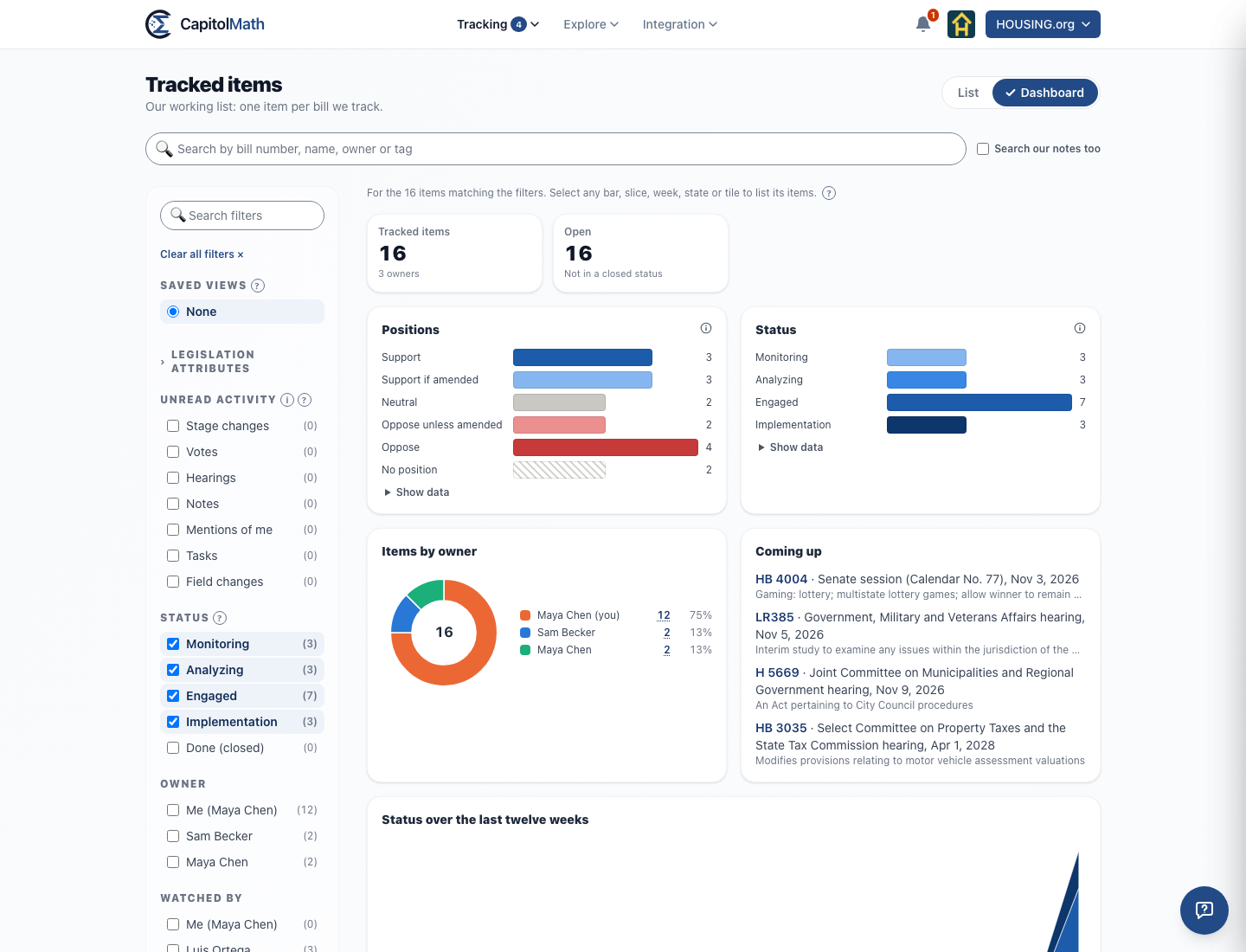
Select Dashboard at the top right to see the items matching your filters as charts: how many there are and how many are open (and, with clients turned on, how many are in conflict), your positions and statuses — one group per client when the items are for more than one — items by owner, each item's status over the last twelve weeks, the next hearings coming up and, when your items span more than one legislature, a map. Every chart shows exact counts on hover and in Show data. Select a bar, slice, week, state or tile to list exactly the items it counts; the breadcrumb above the list takes you back.
The dashboard's charts are private to your organization, so they're never offered as widgets.