TrackingTracked itemsConcept
Getting started with tracking
What tracking is, the Tracking menu, and a bill's life from the Inbox to a report: track it, work it, keep up with it, report on it.
Tracking is your organization's own work on the bills it follows. Legislation is the public record: what each bill says and where it stands. Tracking is what you decided about it, who owns it, what you wrote, what's next and what you've told people. The two sit side by side, so you never copy the record into a spreadsheet to keep notes on it.
The Tracking menu#
Tracking is the first menu in the app. It holds:
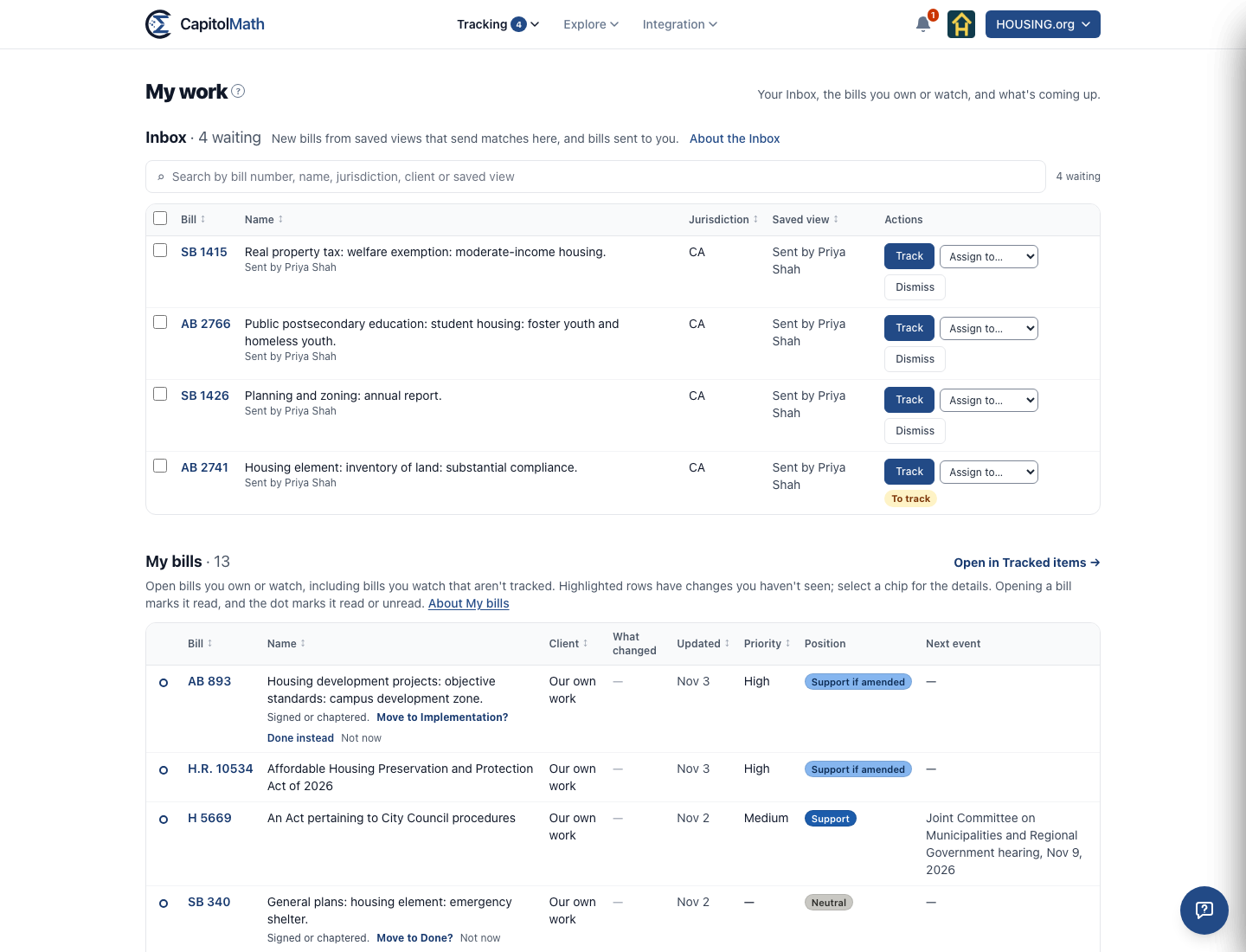
- My work: your own queue. Your Inbox of new bills to decide on, the bills you own or watch with what changed on each, what you're waiting on from colleagues, your tasks, notes that mention you and upcoming hearings. See My work and the Inbox.
- Tracked items: the organization's working list, with filters, saved views, cards or a table, and a dashboard. See Tracked items.
- Tasks: everyone's dated to-dos on tracked bills. See Tasks.
- Reports: client updates, board briefings and session wrap-ups made from a saved view. See Reports.
- Scorecards: legislator scorecards. See About scorecards.
The number beside Tracking and My work is how many bills wait in your Inbox.
A bill's life in tracking#
- It arrives. A triage source, a saved view of the bills you care about, sends each new match to someone's Inbox. A colleague can also send bills there from Legislation with Track N….
- Someone decides. From the Inbox, Track it, Assign to… a colleague, or Dismiss it for the whole organization. You can also track any bill straight from its panel on Legislation: + Track under Tracking, right after the summary.
- You work it. Open the tracked item to set its position, priority, status, owner, watchers and tags. Write notes and mention a colleague with @. Add a task, or one for each tracked bill on a hearing's agenda. See The tracked item panel, Notes and mentions and Tasks.
- You keep up. When the bill moves, is voted on or gets a hearing, it's marked unread for the people who own or watch it, with a chip saying what changed. So is a colleague's note or task. See Unread changes.
- You report. Turn a saved view into a report and send it as a link, PDF or Word file. Each report says what changed since it was last sent. See Reports.
- It closes. When the bill reaches an outcome, its owner is asked whether to move it to a closed status. Closed items leave My bills and stay in Tracked items.
Watching#
Watch on any bill, tracked or not, follows it for you alone: its stage changes and hearings come to you under your notification settings, and it joins My bills. Owners always follow their own items. To follow a tracked item without owning it, watch it. See Watching a bill.
Who sees what#
A tracked item is shared like a saved view: with the whole team by default, or with the people and groups you choose. Read All and Manage All on Tracked items reach every one, for those who lead the work. Everything about it (its notes, tasks and unread changes, and its line in the Legislation list and the CSV) follows the same sharing. What each member can do (read, track, update, export, manage settings) is set by their role, their license and the permission grid. See Sharing and access and Roles and licenses.
Positions are private until you mark one public. Only public positions, and notes marked For reports, ever leave the organization, in a report's link or file.
Setting it up#
An Owner or Admin sets the vocabulary once, under Organization › Workflow: your stages (statuses), what each position is called, whether priority is used, your tags and the reports' footer. See Workflow settings. Each member chooses how they're told about changes under My profile › Notifications: in the app, by email, in their own Slack or Teams, and the Weekly digest. See Notifications.