TrackingTracked itemsHow to
Reports
Turn a saved view into a client update, board briefing or session wrap-up: choose its sections and columns, see What changed since it was last sent, and send it as a link that expires.
A report is a saved view turned into something to hand someone: a client update, a board briefing, a session wrap-up. Its bills are the view's at the moment it runs, so it's never out of date when it's sent.
The Reports page#
Tracking › Reports lists the reports you can see: your own, those shared with you, and every one if you hold Read All on Reports.
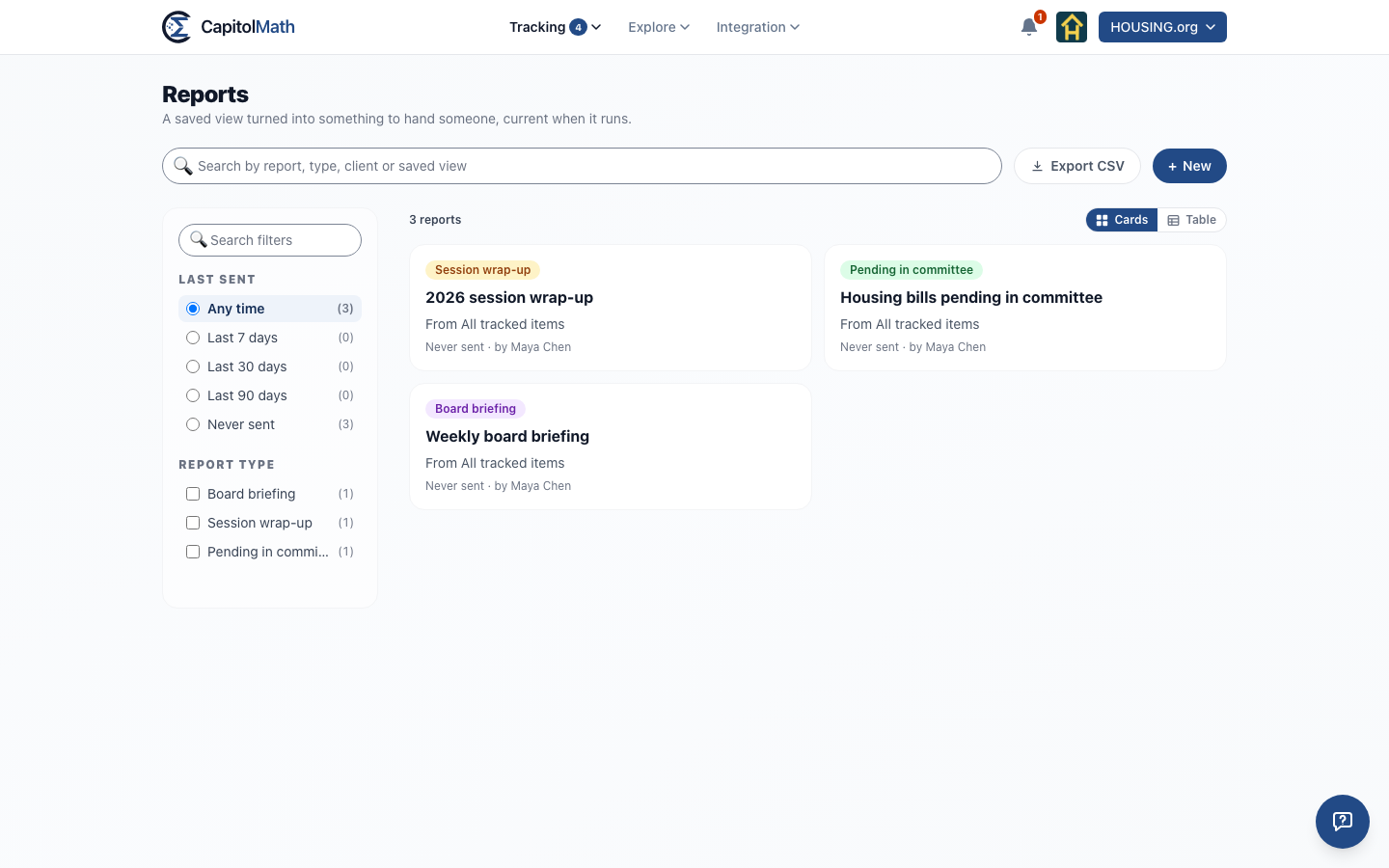
- Search by report name, report type, client or saved view.
- Filters: Last sent (any time, the last 7, 30 or 90 days, or never sent), Report type and Delivery schedule (not scheduled, weekly, every two weeks, monthly). Each count assumes the other filters.
- Cards or Table, remembered in your browser. Every table column sorts; reports last sent most recently come first, never-sent ones last.
- Export CSV downloads the reports shown: name, report type, saved view, last sent and who made it. It needs Export to CSV on Reports, which anyone who can export tracked items has unless an Owner or Admin changes it.
- New starts a report from a template. It needs Create on Reports.
Opening a report opens its settings beside a live preview. ← Reports returns to the list with your filters as they were.
Templates#
Choose the saved view its bills come from: a Tracked items view, or a Legislation view filtered to Tracked by us. With no view, a report covers every tracked item, at every status. Then start from one of six templates, or from one of your organization's own:
- Client update: what changed, then the bills by position, with notes marked for reports.
- Board briefing: at a glance, the high-priority bills by position, then what takes effect soon.
- Session wrap-up: the bills by outcome, with positions and what takes effect. It covers the whole session, not only the time since the last report.
- Pending in committee: the bills sitting in a committee, grouped by committee, with each committee's next meeting, whether the bill is on its agenda, the chair, and which committee members sponsor it. Bills not in committee are left out and counted.
- By sponsor: the bills grouped by primary sponsor, with party, district and committee seats, and your position on each.
- Outcomes: how your positions fared, for the end of a session, an annual report or a client renewal. See Outcomes. Offered when positions are on.
Save as our template keeps a report's sections, order, grouping, sorting, columns and What changed's kinds as one of your organization's templates. Its recipients, opening message and saved view stay with the report, and changing a template never changes reports already made from it.
What a report holds#
The cover comes first: your organization's name and logo, the title, the period it covers, when it was produced, and your opening message. Then, in the order you choose:
- What changed: since the report was last sent, the bills added to its view, stage changes and amendments, recorded votes with the tally, hearings scheduled or moved, bills signed, vetoed or dead, effective dates set, and your position changes. Choose which kinds it lists. The first run, with nothing sent before, covers a period you choose.
- At a glance: counts by position and by stage, and the next two weeks' hearings on these bills.
- The bills: a table grouped by position, priority, status, tag, committee, sponsor or outcome (or not grouped), sorted by priority then bill number, by bill number, or by the most recent change. A bill with several tags appears under each. Its columns are your choice: position, priority, status, owner, tags, the next event, and any of your organization's custom fields, each value shown as its type reads (an amount in dollars, a date, a choice's name).
- Notes: only notes marked For reports, written in the period, under each bill.
- Taking effect: laws among these bills taking effect in the next 90 days, with how each date was determined.
Changing a report#
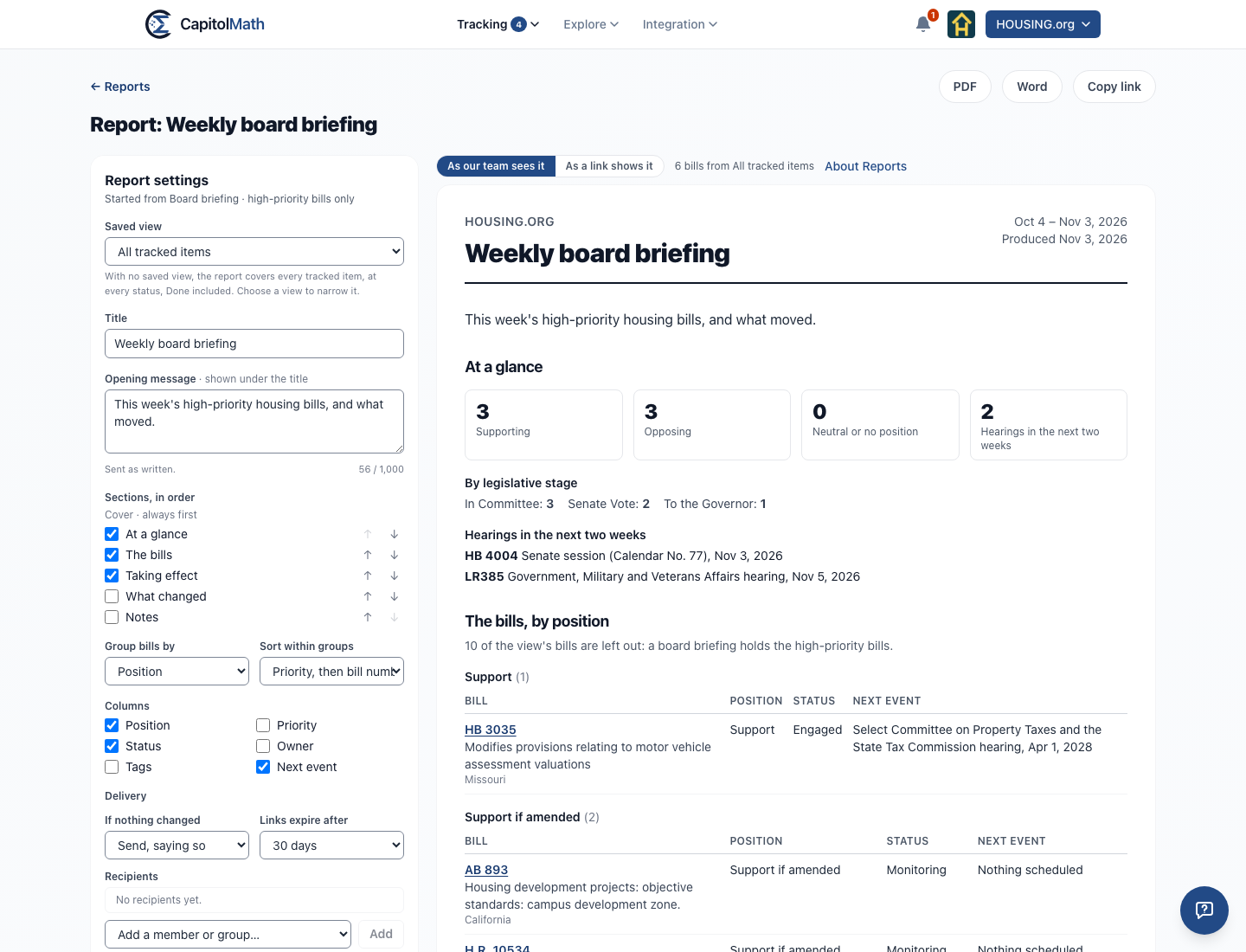
Every setting changes the preview at once. Save stores them for the next run; each run keeps the settings it was sent with, so a past report never changes. The opening message is up to 1,000 characters and shows when it was last changed, so a stale "this week" is easy to spot. Turning What changed off doesn't move its starting point: the next run that includes it still counts from the last one that did.
Settings your organization turns off leave the report too: with positions off, no position appears; with priority off, it's no longer a column or a grouping, and comes back when priority does.
Custom field columns#
Your organization's custom fields are listed under Columns after the built-in ones. A report keeps the field you chose, not a copy of its values, so each run shows the values as they are when it's made. Custom fields are columns only: a report isn't grouped or sorted by one.
If someone makes a field inactive or deletes it, its column leaves every report that showed it: the next run, the preview, and links already sent, which stop showing it when they're next opened. A PDF or Word file made before then isn't downloaded as it was: make the file again, and the new one leaves the field out. The report keeps your choice of an inactive field, and the editor says how many columns are left out; a deleted field is dropped from the report the next time it's saved. When the field is reactivated, its column comes back where it was. Each report's owner is told either way, in the app and by email (they can change that on My profile).
In a report of your own work, a custom field appears in a link, file or email only as a column the report's author chose; it's never part of the email's body, which carries What changed.
Outcomes#
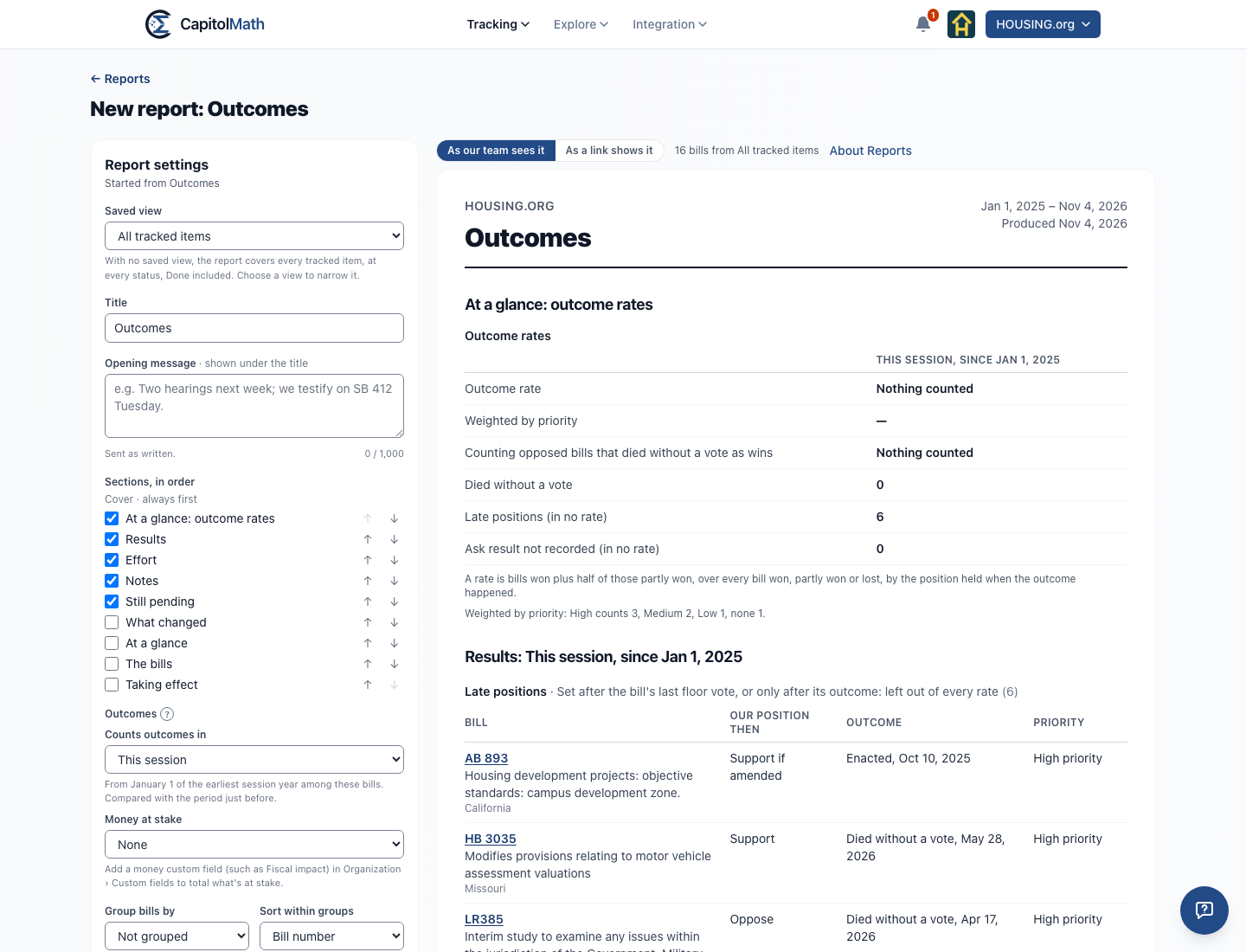
Outcomes counts how your positions fared over a period: This session (from January 1 of the earliest session year among its bills), A calendar year, or Chosen dates. Each bill counts once, in the period its outcome happened.
The position that counts is the one you held when the outcome happened, read from the position's history, so changing it afterward never rewrites a result. A position first set after the bill's last floor vote, or a bill tracked only after its outcome, is a late position: it's listed on its own and left out of every rate. Votes and outcomes are recorded by day, so CapitolMath compares days in the bill's state's own time zone: a position set or changed on the day of the last floor vote or the outcome, or earlier, counts for it; one set on a later day is late. A bill that failed a vote and later recovered isn't counted as defeated by that vote: only its last recorded vote decides whether it failed one.
| Your position | Won | Partly won | Lost |
|---|---|---|---|
| Support | Enacted | Vetoed, or failed a recorded vote | |
| Support if amended | Enacted with our ask adopted | Enacted with our ask partly adopted | Enacted without it, vetoed, or failed a vote |
| Oppose unless amended | Our ask adopted, or the bill defeated | Enacted with our ask partly adopted | Enacted without it |
| Oppose | Failed a recorded vote, or vetoed | Enacted |
A bill that died without a vote is never a win. An "if amended" bill enacted without Our ask recorded is listed as Ask result not recorded and left out, so the report never guesses. Neutral and No position are listed for completeness, never in a rate.
Its sections, which you can reorder or turn off like any report's:
- At a glance: outcome rates. Won plus half of partly won, over everything won, partly won or lost. It's shown unweighted and weighted by priority (High 3, Medium 2, Low 1). It's also shown counting the opposed bills that died without a vote as wins, labeled as such, beside the previous period of the same length.
- Money at stake. Choose a money custom field, such as Fiscal impact, under Money at stake. Its total is shown by result: protected (bills you opposed, won), gained (bills you supported, won), lost, died without a vote, and still pending. A partly won bill counts half each way. If the field is made inactive, it leaves the report, and links already sent, and the report's owner is told.
- Results: the bills grouped by result, with the position you held then and the outcome.
- Effort: meetings logged on officials and committees that link each bill, tasks done and notes, by result. It shows where time went; it doesn't claim the effort caused the result. On a link or an email of your own work, which leaves your organization, Effort counts only notes and meetings marked For reports, and no tasks (tasks can't be marked for reports); in the app it counts everything you can see.
- Notes marked for reports, and Still pending: the bills with no outcome yet.
On a link or a file sent outside, a bill's result appears only when its position is public and was the same when the outcome happened. The others are counted, never named. A client's Outcomes shows that client its own positions, with no weighted rate, no task counts, and only the fields shown to clients. Our ask isn't shared with clients, so an "if amended" bill that was enacted is listed under Amendments we asked for.
Reports for a client#
With clients turned on, a report can be for one client: choose the client under For when you make it (the client's pane links to its reports). A Client update is usually for one client. The client can't be changed afterward.
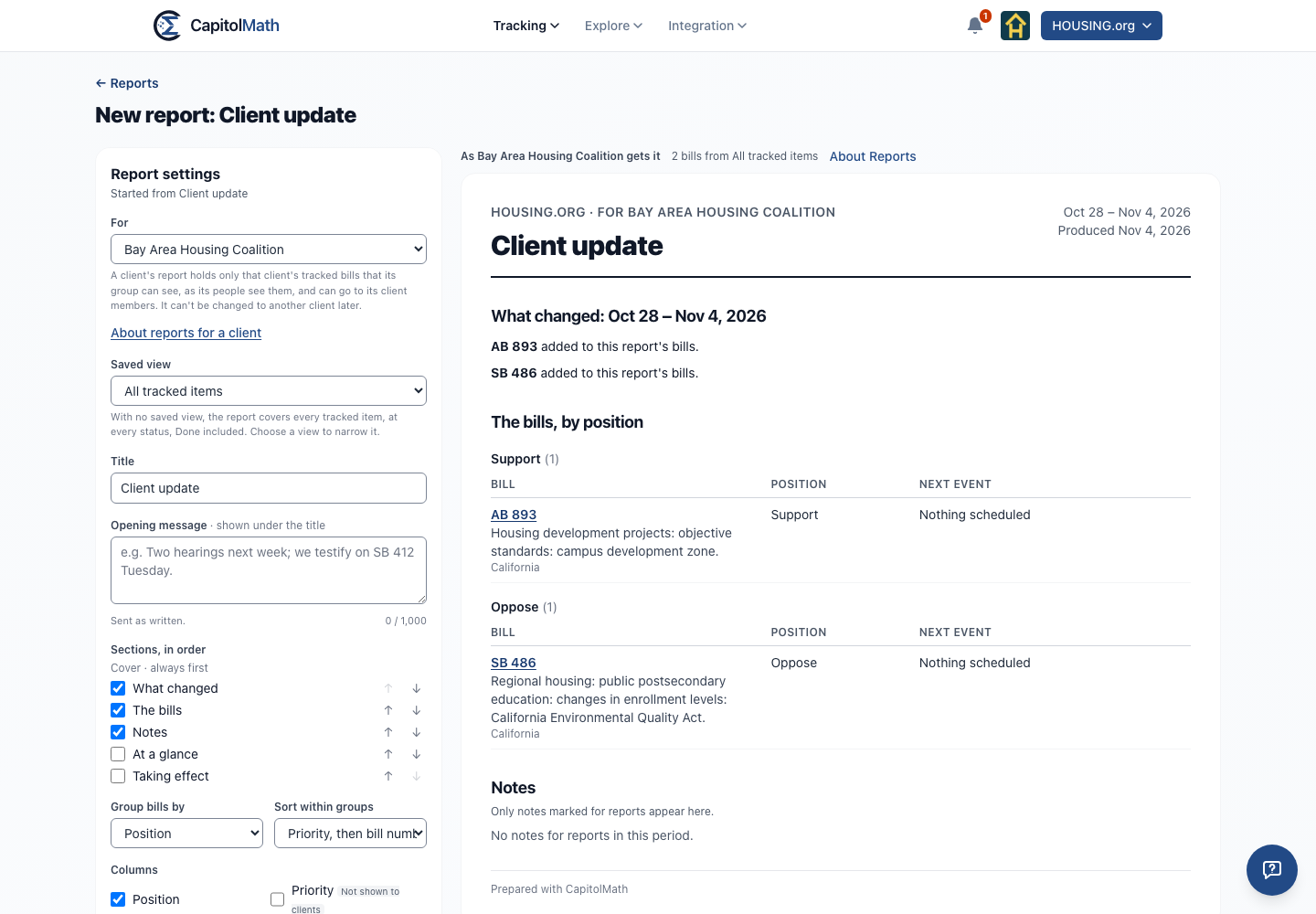
- Its bills are that client's, as the client sees them: the client's tracked items shared with its group, never your own work or another client's. Its saved view still chooses which of them; the view is read as the report's owner.
- It shows what a client is shown: its own position on each bill, whether or not you've marked it public, the next event and the fields you show to clients (status and tags when Show to clients is on, and the custom fields marked Show to clients that aren't inactive). A custom field turned from shown to hidden leaves the report's links at once, and every scheduled email after that, even one already on its way to the rest of its recipients, carries files made again without it. Never another client's position or your own work's, never priority, owner, watchers, tasks or conflict marks, and only notes For the client. The same goes for everyone who receives it: the client's members, your team and approved outside addresses, by link, PDF, Word or email. The preview shows it as the client gets it.
- Its cover names the client, and on Scale carries the client's logo beside yours.
- Who it goes to: your team, the client's own client members and its group, and approved outside addresses. Another client's people or group are refused, and checked again each time it's sent.
- It's shared as the client's work is: with the whole team and the client's group, or, for a client walled off to its group, with the client's group alone.
- It stops while the client is archived: it isn't sent, its links don't open, and both resume when the client is active again.
Whose access a report uses#
A report of your own work shows what its owner can see: its view's bills that are shared with them, and the notes they can read. A report for a client shows what that client's group can see. If someone else opens it, the preview leaves out what isn't shared with them, and says how many. A report shared with you to edit can be sent only if you can see all of its bills: otherwise Copy link, PDF and Word are unavailable, and say how many aren't shared with you.
Sending a link#
Copy link makes a read-only web page of the report as it is now, and copies its address. Anyone with the link can open it, without an account, until it expires: 7, 30 or 90 days, as the report sets (30 to start). Search engines never index it. A link shows only the positions marked public on each tracked item, and only notes marked for reports; preview it with As a link shows it. Each link is listed in the report's run history, with how many times it was opened, and Revoke stops it opening at once. Runs, and their files, are kept 13 months.
PDF and Word#
PDF and Word at the top of a report download it as a file, made from the report as it is now. Both hold what a link holds: only positions marked public, and only notes marked for reports, so a file is safe to send outside your organization.
- PDF is printed from the same page as the link, so the two always match. It's an accessible PDF: tagged with the report's headings and table headers, an outline to jump between sections, the logo's alternative text, and the report's title and language.
- Word has real headings and tables, ready to edit into a board memo: the title and each section are Word headings (so the navigation pane and a table of contents work), and each group of bills is a table whose header row repeats on every page.
Making a file sends the report, as Copy link does: it needs what Copy link needs, waits for your unsaved changes to be saved, appears in the run history, and the next What changed counts from it. A PDF can take a few seconds; if it takes longer, it's downloaded when it's ready, or you can download it from the run history. Each file stays in the run history for 13 months, so "what did we send in March?" has an answer: Download gets it again. Whoever made a file can always download it; anyone else who can see the report can if they can see every bill in it.
Scheduled email#
A report can email itself to its recipients weekly, every two weeks or monthly, with What changed in the email and the report as a link, a PDF or a Word file. Set it under Delivery; see Scheduled reports.
Recipients#
Add members, groups, or addresses outside your organization. An outside address added by someone without Manage workflow settings waits on the Organization page, under Reports, until an Owner or Admin approves it, and they're told it's waiting. If a member recipient can't see some of the report's bills, the editor says so: their copy leaves those out. Recipients get the report when it's scheduled, checked again each time it goes out, and can unsubscribe from it with one click.
Who can do what#
- Everyone reads the reports shared with them. Team members with a Full license create reports and change their own, and those shared with them to edit; Admins can manage every report. A Basic license reads reports but changes none.
- A report's owner, or someone with Manage All on Reports, changes who it's shared with and deletes it.
- If a report's owner leaves the organization, whoever removes them chooses an Owner to take their reports, or pauses them. Someone with Manage All on Reports can take over a paused report.
- Reports are on the State, Developer, Pro and Scale plans. Reports without "Prepared with CapitolMath" are on Scale. See Workflow settings.