TrackingTracked itemsHow to
Scheduled reports
Email a report weekly, every two weeks or monthly, with What changed in the email and the report as a link, PDF or Word file; who receives it, checked each time, and unsubscribing.
A scheduled report emails itself to its recipients weekly, every two weeks or monthly. Each email carries What changed since the last one in its body, and the full report as a link, a PDF, a Word file or any mix of the three.
Setting a schedule#
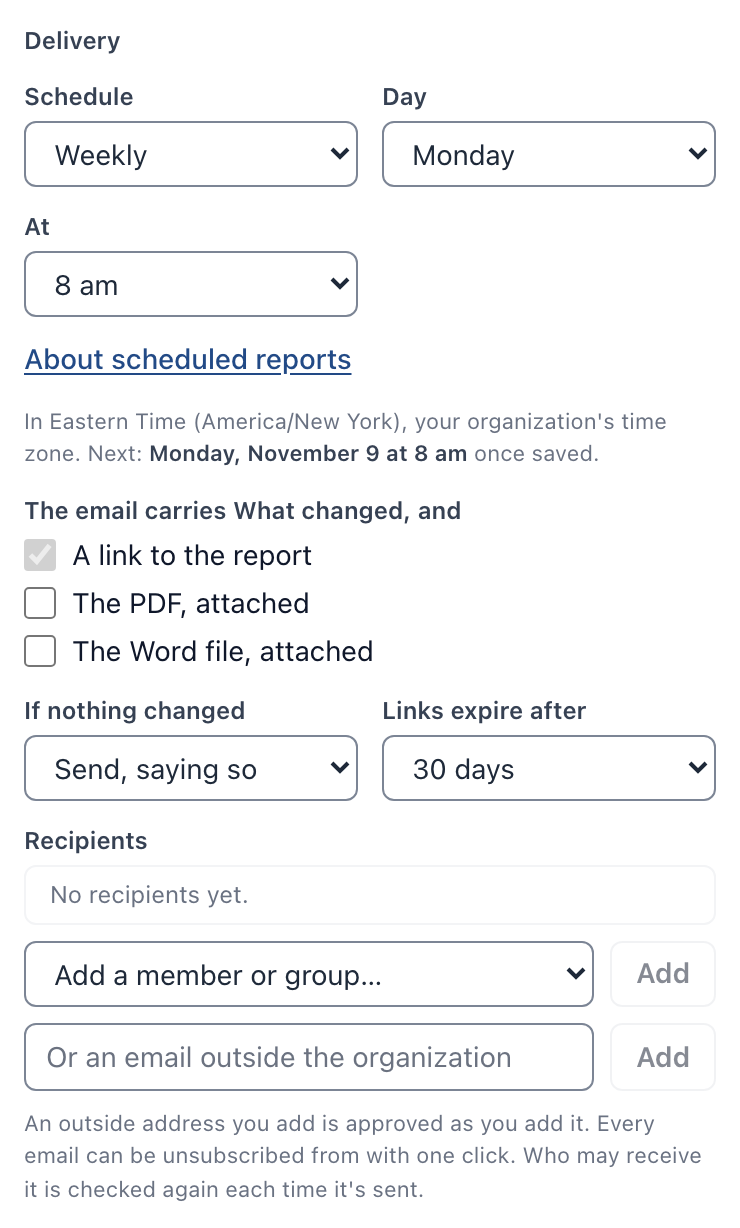
Open a report and, under Delivery, choose:
- Schedule: weekly, every two weeks or monthly.
- Day: a weekday, or for a monthly report a day of the month from the 1st to the 28th, so every month has it.
- At: the hour it goes out, in your organization's time zone (Organization › Profile). It stays at that local hour when the clocks change.
- What the email carries, besides What changed: a link to the report, the PDF attached, the Word file attached. At least one.
The editor shows when it next goes out. Save the report to start the schedule. A changed schedule starts from the next time it falls due; nothing that was due earlier is sent late.
How many reports your organization can schedule depends on your plan: 2 on State and Developer, 20 on Pro, as many as you like on Scale. A report past a lowered limit waits, unchanged, until there's room.
What goes out#
- Once each time it falls due. If the email can't go out (a mail outage, say), CapitolMath tries again the next hour, for up to two days, and no recipient ever gets the same report twice.
- What changed counts from the last report sent, by schedule, link, PDF or Word, exactly as Copy link does. The email's report is a run in the run history, with whom it reached and its attachments, for 13 months.
- If nothing changed: with If nothing changed set to Skip that run, a report whose What changed lists nothing of its chosen kinds isn't sent, and the next one still counts from the last report sent. Set to Send, saying so, it goes out and says nothing changed.
- What leaves your organization: a scheduled email holds what a link holds: only positions marked public and notes marked For reports. A report for a client shows that client its own positions, public or not.
- Links in the email open without an account until they expire (7, 30 or 90 days, as the report sets) and can be revoked from the run history.
Who receives it#
Add members, groups and addresses outside your organization under Recipients, as for any report. An outside address added by someone without Manage workflow settings gets nothing until an Owner or Admin approves it.
Each recipient is checked again every time the report goes out, against who they are then:
- A member who has left, or whose access to reports was turned off, gets nothing.
- A member of a group gets it only while they're in the group.
- A client member gets only their own client's reports, never your organization's own work, and nothing while their client is archived. A report for a client isn't sent at all while the client is archived.
- An outside address that has since joined your organization, or has an invitation waiting, gets nothing as an outside recipient. Add them by name once they've joined.
- A member who can't see some of the report's bills gets a copy without them, with a link of its own. The editor warns you before you save.
Who was left out, and why, is kept with the send and recorded in the audit log, never with an address.
Unsubscribing#
Every scheduled report email ends with Unsubscribe from this report, and mail apps show their own unsubscribe button for it. One click stops that person's copies of that report and nothing else: their other reports, and the report's other recipients, are unchanged. It works without signing in.
An outside address that unsubscribes shows as Unsubscribed among the report's recipients and can't be added back, even after it's removed. The audit log records that a recipient unsubscribed, never who.
Who can do what#
Scheduling is part of changing a report: its owner, anyone it's shared with to edit, and members with Manage All on Reports, each with a Full license. Organization › Reports lists every scheduled report for Owners and Admins. See Reports for the rest of what a report can do.