TrackingTracked itemsHow to
Notes and mentions
Write notes on a tracked bill, mention a colleague with @, attach files, mark a note for reports, edit or delete notes, and search them.
Notes keep your organization's knowledge about a tracked bill in one place: what the author's staff said, what the coalition decided, what to watch for in committee. They sit in the tracked item's panel, beside the bill's record, and anyone who can see the item can read them.
Notes on an official, committee or hearing work a little differently: each has its own audience. See Officials, committees and hearings.
Who sees a note#
A note on a tracked item is seen by exactly the people who can see the item: those it's shared with, and anyone with Read All on Tracked items. It has no sharing of its own. Share the item more widely and its notes go with it; share it more narrowly and they follow.
Every member can write notes, including members with a Basic license.
Writing a note#
- Open the tracked item from Tracked items, or from a bill's Tracking list on Legislation.
- Under Notes, type in Write a note. Plain paragraphs, lists (start a line with
-or1.), links and bold (**like this**) all work, up to 20,000 characters. - Turn on For reports if the note may appear in reports. It shows a for reports mark while it's on.
- Choose Post note.
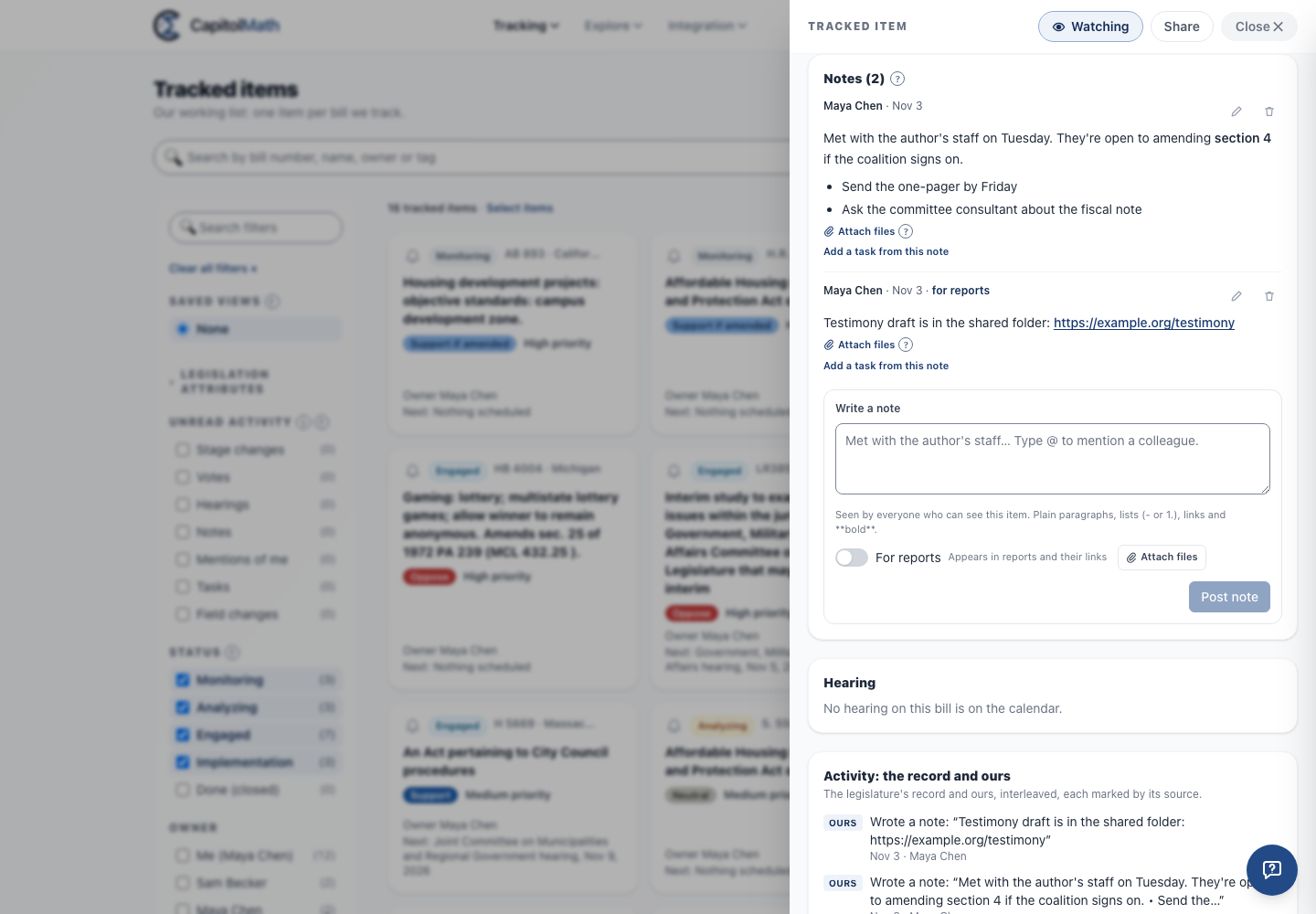
For reports lets a note appear in your reports, and anyone holding a report's link can read it until the link expires. Leave it off for notes meant only for your team.
Writing a note marks the item unread, with a Note chip, for the people who own or watch it. See Unread changes.
Mentioning someone#
Type @ and the start of a name, then choose the person from the list (↓ and ↑ to move, Enter to choose, Escape to close it). Their name goes into the note as @Dana Ortiz, and the line under the box lists who the note mentions. A mention is one piece: Backspace at the end of the name, or Delete at its start, removes the whole mention. The list offers only people who can read the note, so a mention never shows a note to anyone who couldn't already see it. To mention someone else, share the item with them first.
Each person you mention is told, under their notification settings: in the app and by email to start with. The notification names the bill and who wrote the note, never its text. The item is unread for them with a Mention chip until they open it, even if they don't own or watch it, and Mentions of me under Unread activity on Tracked items finds it.
Editing and deleting#
A small pencil (Edit note) and trash can (Delete note) sit at the right of a note's byline, for the people who can use them:
-
The note's author edits and deletes it.
-
The tracked item's owner deletes it, but doesn't edit it.
-
Anyone with Manage All on Notes for Legislation (Owners and Admins, to start with) edits and deletes it.
-
Editing keeps every earlier version. The note says edited, or edited by whoever changed it when that wasn't its author, and Earlier versions shows each one with who wrote it and when. Each earlier version keeps the audience it had: if a note's audience changes, someone who can read it now sees only the versions they could have read then. A client member never sees the versions of a note from before it was For the client. When someone else edits your note, you're told.
-
Deleting asks first, then removes the text and its earlier versions, and leaves Note deleted by the person and the date in the thread. When someone else deletes your note, you're told. Reports already sent keep it; later ones leave it out.
The tracked item's owner can delete notes on the item, to keep its thread tidy, but can't change what someone else wrote. That right moves with ownership.
Every note written, edited and deleted is in the audit log, naming the bill, the note and its author, never its text.
Attaching files#
Attach the testimony draft, the one-pager, the fiscal analysis or a photo of the handout to the note it belongs with.
- Writing a note, choose Attach files beside Post note and pick one or more files. They're attached when you post the note.
- To add files to a note already posted, choose Attach files under it. That's offered to whoever can edit the note: its author, and anyone with Manage All on Notes for Legislation.
- What you can attach: PDF, Word, Excel, PowerPoint, plain text and CSV files, and JPEG, PNG or HEIC images (a photo straight from a phone), up to 25 MB each and 10 to a note. Files with macros aren't accepted, and neither are password-protected Office files, which can't be checked for malware: remove the password and attach it again. Password-protected PDFs are accepted.
- Scanned first. Every file is checked for malware before anyone can open it, you included. Until then it shows Scanning…, usually for under a minute. A file that fails the check, or can't be checked, is removed straight away and marked under the note, and you're told. Nobody opened it.
- Who can open a file: exactly the people who can read its note, as they are now. A note on a tracked item follows the item, so share the item more narrowly and its files narrow with it. Select a file's name to download it. The link is made for you alone and works for two minutes, and every open is in the audit log.
- Never in reports. A note marked for reports carries its text into reports and their links, never its files. Files aren't in widgets, public pages, webhooks, notifications or the AI assistant either.
- Removing a file: choose × beside it. Anyone who can edit or delete the note can. Deleting a note removes its files too. Either way the file leaves storage straight away, and your organization's storage use drops at once.
- Storage: 5 GB on State and Developer, 50 GB on Pro and 250 GB on Scale, counting the files you keep. Browse doesn't include attachments. See Plans.
Searching notes#
On Tracked items, tick Search our notes too beside the search box to also find items whose notes contain your words. It searches only the notes you can read, and saves with your view.
When you stop tracking a bill#
Stopping tracking a bill deletes its notes and their files along with its position and history. A member who leaves the organization keeps the credit for their notes: the notes stay, under their name.