TrackingTracked itemsHow to
Clients
Track bills for the clients you work for: each client's record, its account team and client members, walling a client off, and archiving or deleting one.
With clients on, your organization tracks bills for the clients it works for: a firm's clients, an association's chapters or members, an agency's districts. Each client has its own record, its own group of people, and its own tracked items, so a bill can carry one position for one client and the opposite for another. Clients are on the Pro and Scale plans.
Turning clients on#
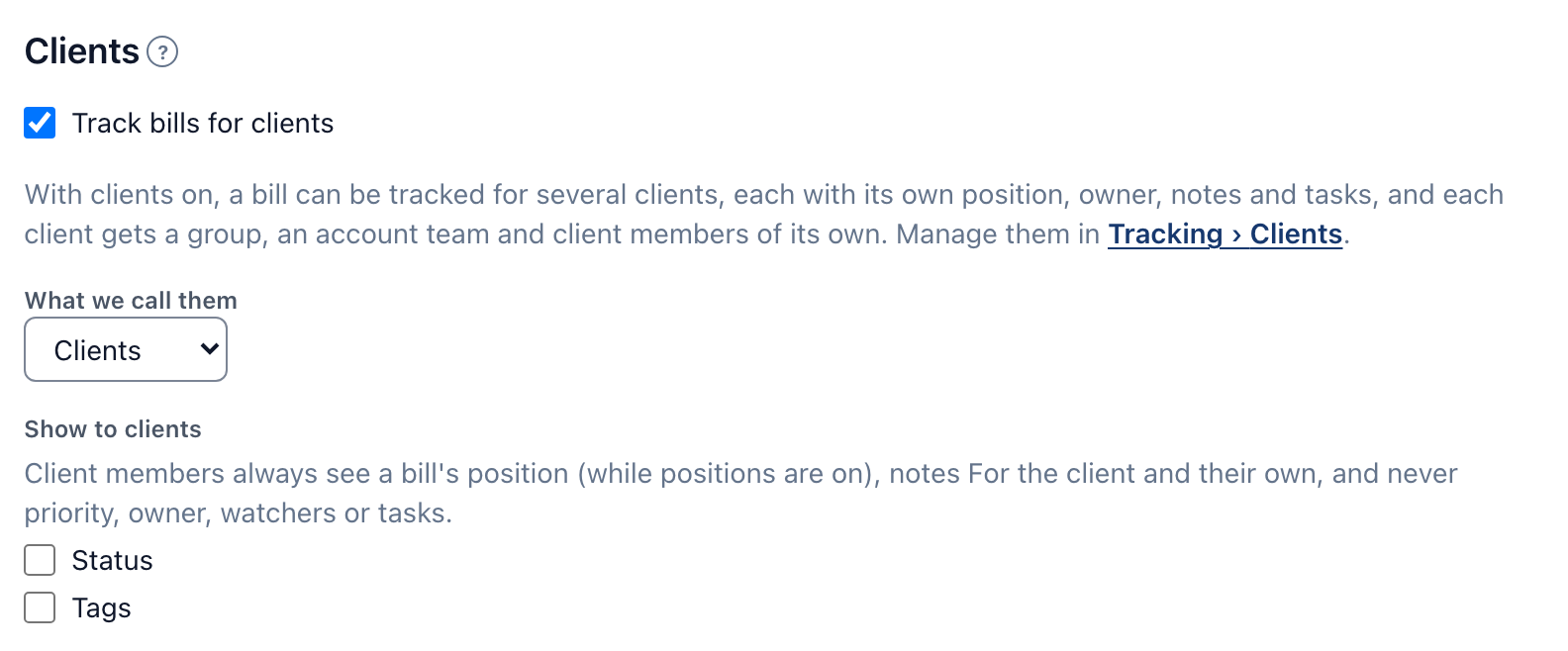
An Owner or Admin (anyone with Manage workflow settings) turns clients on in Organization › Clients and chooses what to call them: Clients, Members, Chapters or Accounts. The rest of the app uses that word. Turning clients off is refused while more than one active client has tracked bills.
On the same section, Show to clients decides whether client members see each bill's status and tags. They always see its position, while positions are on.
The Clients page#
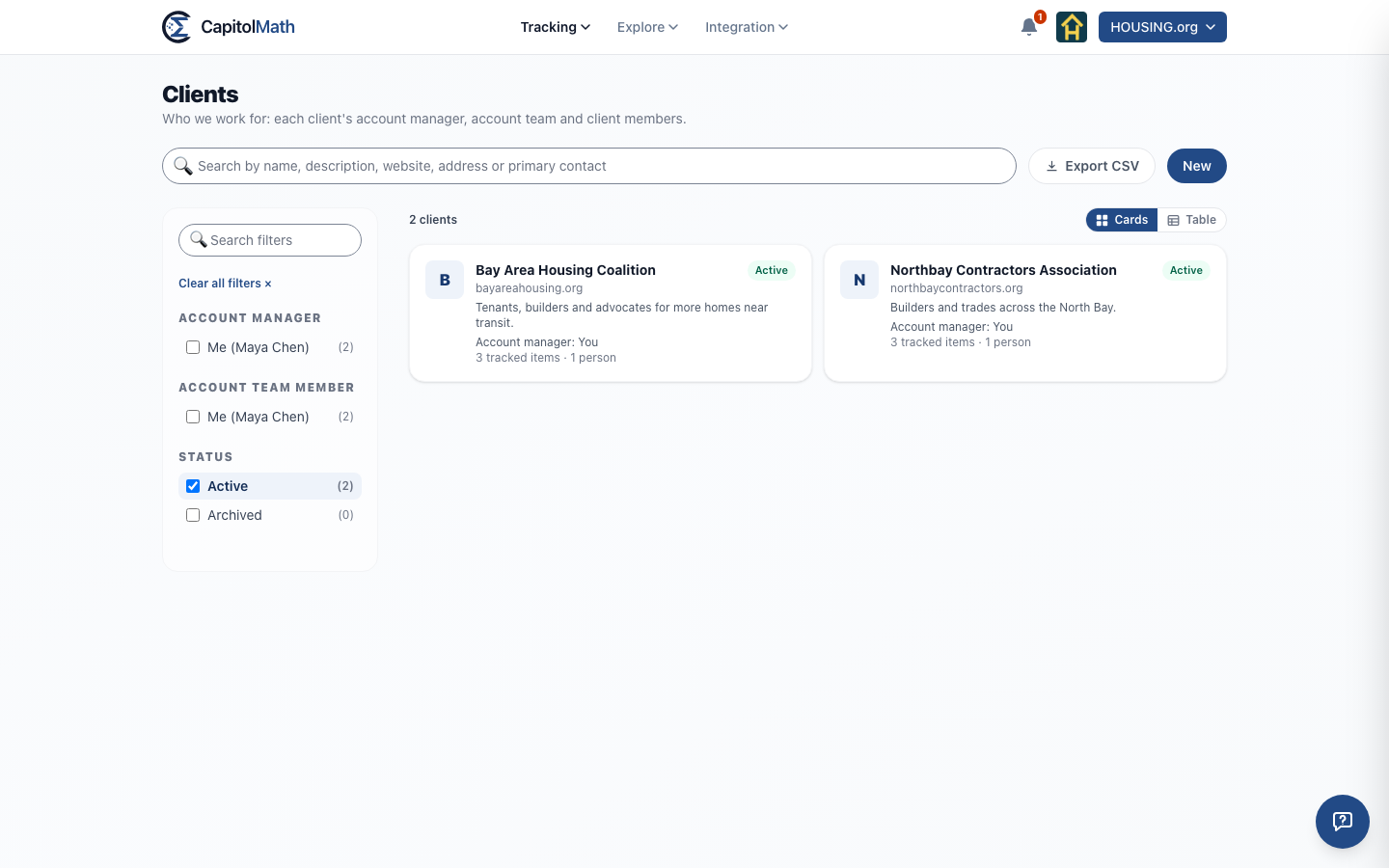
Tracking › Clients lists the clients you can see: those you're the account manager of, those shared with you or your groups, and every one if you have Read All on Clients.
- Search matches a client's name, description, website, address and primary contact.
- Filters on the left: Account manager, Account team member (you're listed first) and Status, with Active checked to start. Each count assumes the other filters.
- Cards or Table: cards show each client's logo, website, description, account manager and how many tracked items and people it has; the table's columns all sort.
- Export CSV downloads the clients shown, with Export to CSV on Clients.
- New adds a client, with Create on Clients (Owners and Admins by default).
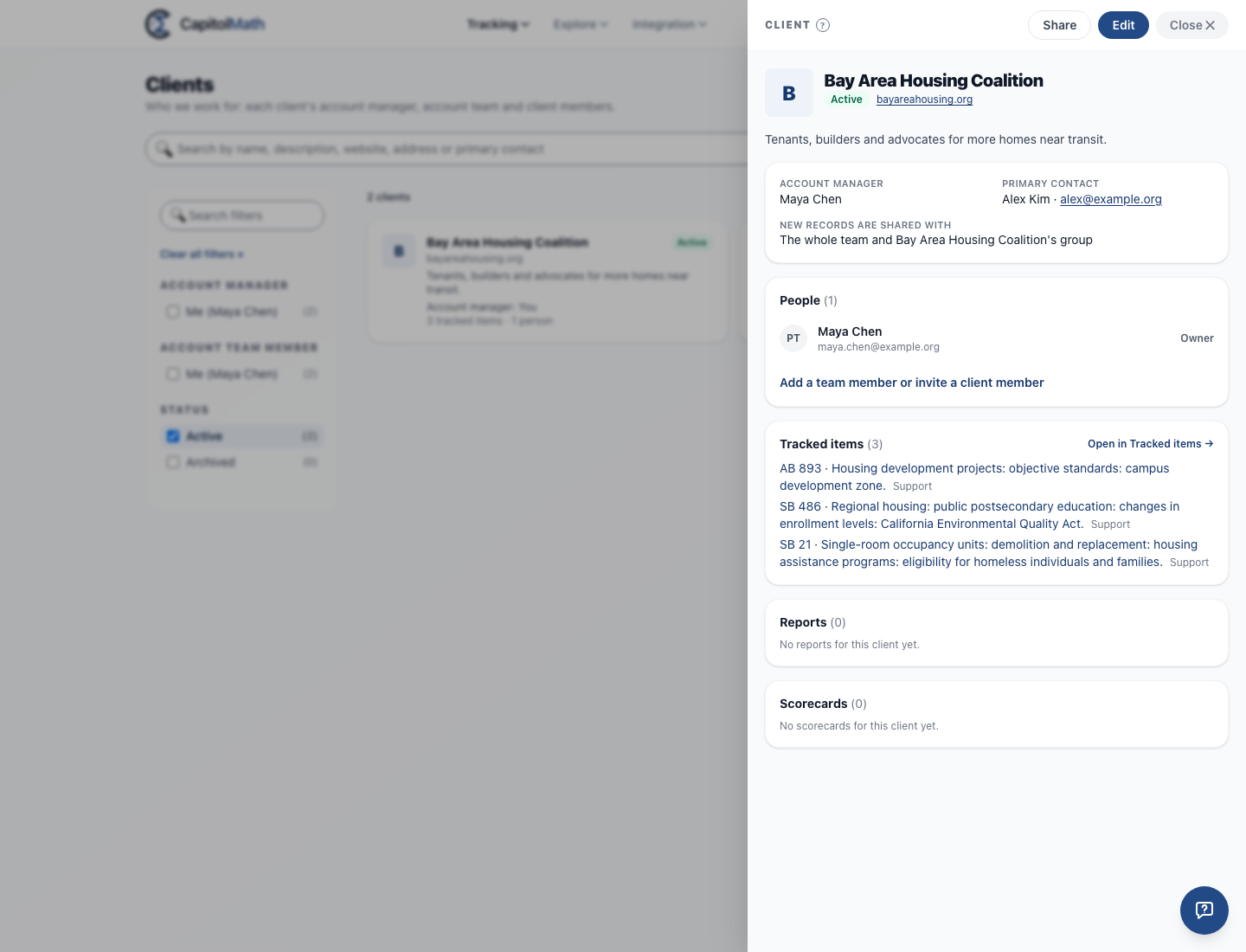
Select a client to open its detail pane: its details, its default share, People, and its Tracked items, Reports and Scorecards. Its reports are the reports made for it, which show what the client is shown and can go to its client members.
Adding and changing a client#
- Choose New on Tracking › Clients.
- Enter its name (up to 40 characters), and if you like a logo (PNG, JPEG or WebP, up to 2 MB), a description, its website, its address and a primary contact's name and email. The primary contact is someone at the client to write to; they don't need to be a member.
- Choose its account manager: you, to start with.
- Choose who its new records are shared with: The whole team and its group (the default), or Its group only.
- Choose Add client.
Creating a client creates its group, named after it. Its client members are always in it, and team members added to it are its account team.
A client is changed by its account manager, by people it's shared with as an Editor, and by members with Manage All on Clients, in each case only with Update on Clients. Choose Edit in its pane. Changing the account manager hands the client and its shares on; only the account manager or someone with Manage All can do that.
Walling off a client#
Each client's default share says who sees its new tracked items:
- The whole team and its group: everyone on the team, and the client's own people.
- Its group only: only its account team and its client members, plus members with Read All on Tracked items.
Choose Its group only for a client whose work has to stay with a dedicated account team. Records that already exist keep their shares; when you change the default, check Apply it to its existing tracked items too to change them as well.
Walls between team members are soft: someone with Read All crosses them, and granting Read All is recorded in the audit log. The wall around a client's own people is not soft (below).
People#
People in the pane lists the account team and the client members together. Client members have a Client chip and are always Viewers. Team members are Viewers or Editors of the client; the account manager is its Owner.
- Add a team member or invite a client member opens two forms. Add a team member puts someone on the account team: they join the client's group and see what's shared with it. Invite a client member sends an invitation to one of the client's own people, on a free Basic license. If their address receives your reports as an outside recipient, it stops when they join: a client member receives only their own client's reports.
- Access: the account manager, or someone with Manage All, changes a team member between Viewer and Editor. Editor needs Update on Clients; nobody changes their own.
- × removes someone after you confirm. A team member leaves the account team; their role, license and permissions don't change. A client member leaves the organization, since a client member belongs to one client. An invitation not yet accepted is revoked.
The account manager and the client's editors add and remove its people without Manage members. Moving a client member to another client is on the Organization page's Members list, for those with Manage members.
Client members#
Client members are the client's own people. They sign in and see, read-only:
- their own client's tracked items, and any of your organization's own work you've shared with their client's group;
- each item's position, and its status and tags when Show to clients is on;
- notes marked For the client, and their own notes, which are marked From the client and seen by your team and their client's group;
- notes on officials, committees and hearings kept to the client's name and our team, and their own there, marked from the client (see Notes for a client);
- their client's page, when they're granted the Clients page;
- on each item they've opened, Moved since your last visit when something they can see changes, and an Updated date that counts only those changes (see Unread changes);
- when your organization turns on Client members under Organization › Workflow › Briefs, the client copies of briefs you've shared with their client, and a weekly digest of their client's bills (see Sharing a client copy with the client).
They never see another client's anything, or any item's priority, owner, watchers, tasks or conflict marks. They don't export, use integrations, tasks, triage or My work. A mention reaches a client member only in a note For the client.
The client wall#
No change can show one client's records to another client's people. Each of these is refused, with nothing saved:
- sharing one client's record with another client's group or one of its client members;
- adding a client member to any group but their client's, or taking them out of it;
- adding another client's group or client member as a report's recipient;
- moving a client member to another client while anything of their old client is shared with them directly.
The refusal names the client only if you can see it.
Archiving and deleting#
Archiving a client (set its Status to Archived in Edit) hides its tracked items everywhere, keeps its client members from signing in and pauses their pending invitations, until it's made active again. Nothing is deleted.
Deleting an archived client (Delete client in Edit, with Delete on Clients) takes it and everything it holds out of every page at once. For 30 days an Owner can restore it from Organization › Clients, as it was. After 30 days it's erased with its tracked items, notes, tasks and reports. Remove its client members before deleting it.
Removing an account manager#
Removing a member who manages clients asks who becomes their clients' account manager. Their tracked items for a client go to that client's account manager.