TrackingTracked itemsHow to
Tasks
Give a colleague a dated to-do on a tracked bill, or one that moves with a hearing; follow everyone's on the Tasks page and its dashboard.
Tasks are your organization's to-dos on the bills it tracks: "Submit written testimony", "Send the one-pager to the chief of staff". Each task is on one tracked bill, assigned to one person, due on a date or a number of days before a hearing, and done or not.
Tasks can also be on an official, a committee or a hearing, added from its panel; see Officials, committees and hearings.
Who sees a task#
A task is seen by everyone who can see its tracked bill: those it's shared with, and anyone with Read All on Tracked items. It has no sharing of its own. Client members never see tasks.
Members with a Full license add tasks and take them. A task you're assigned to or made, you can change, complete, cancel or delete; Owners and Admins with a Full license can change anyone's (Manage All on Tasks). Members with a Basic license see tasks but don't add or take them. See Roles, licenses and permissions.
Adding a task#
- Open the tracked bill from Tracked items and choose + Add task on its Tasks card. Or choose New on Tasks, or + New task on My work, and pick one or more tracked bills first.
- Say what the task is, up to 200 characters.
- Choose who it's assigned to: a team member with a Full license who can see the bill. With several bills chosen, Each item's owner gives each bill's task to that bill's owner.
- Choose a due date, today or later, or Before a hearing on the bill.
- Choose Add task.
Choosing several bills makes one task for each. Whoever you assign a task to is told, unless it's you, in the app and by email to start with (see Notifications); the notification names the bill and the due date, never the task's words. A new task marks the bill unread, with a Task chip, for the people who own or watch it.
Under a note, Add a task from this note opens the same form with the task started as "Follow up: …" and the note's first words.
Tasks that follow a hearing#
A task can be due the day of a hearing on its bill, 1, 2 or 3 days before, or a week before. It shows Moves with the hearing: when the hearing moves, so does the due date. If the hearing is canceled or postponed, the task waits with Hearing canceled — choose a new date and a New date picker, and isn't overdue meanwhile. Picking a date, or editing the due date, stops it following the hearing.
On My work's Upcoming hearings with our bills, and on a tracked bill's Hearing card, Add a task for each tracked bill makes one task for every tracked bill on that hearing's agenda that you can see, each assigned to its bill's owner and moving with the hearing.
Status#
A task's status follows from it, so it's never out of date:
- Canceled if someone canceled it, else
- Complete if it's done, else
- Overdue once its due date has passed, from midnight in your organization's time zone (Organization › Profile), else
- Pending.
On the morning a task is due, and the morning after if it isn't done, its assignee is told in the app (they can choose email or Slack or Teams too).
The Tasks page#
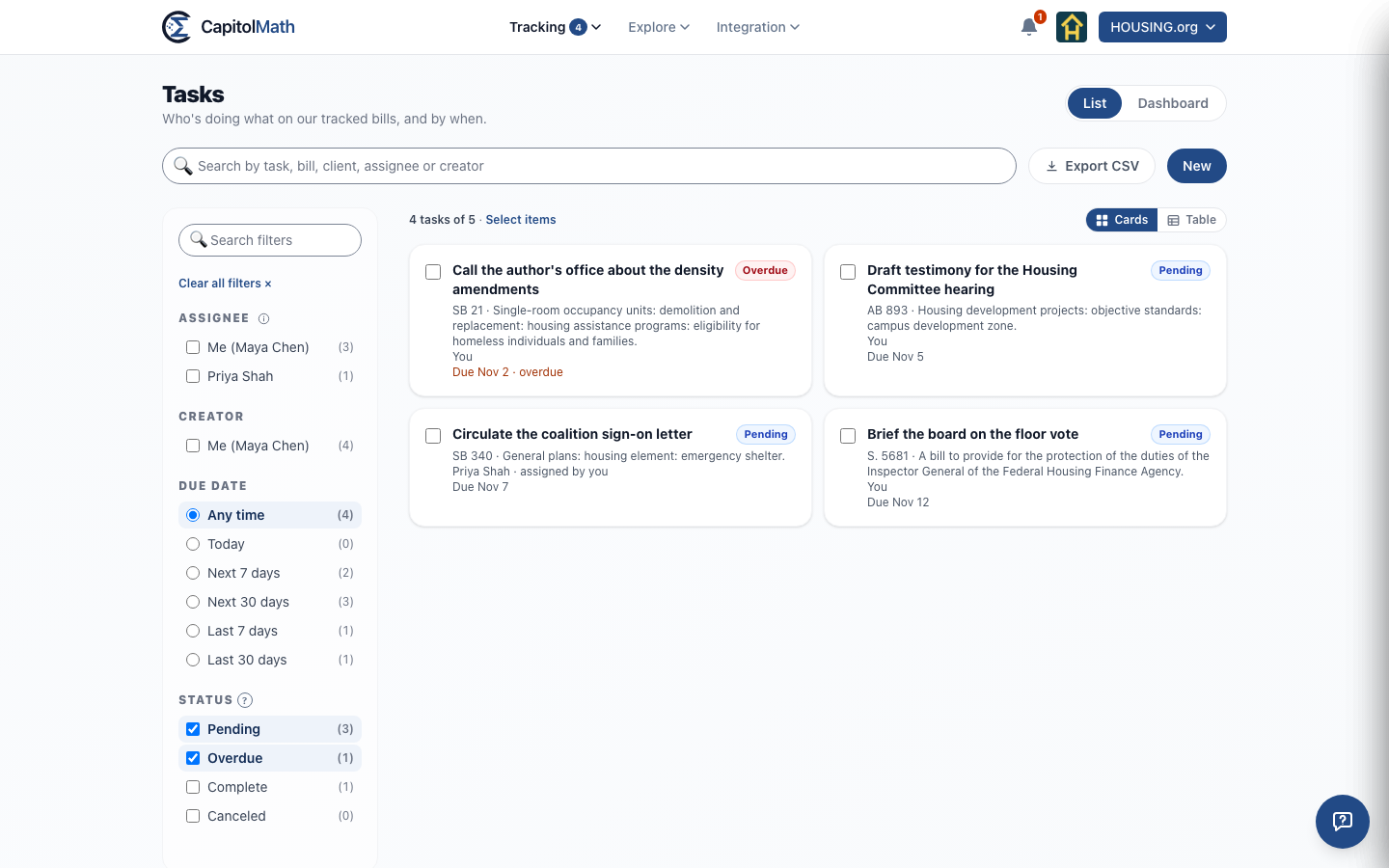
Tasks, under Tracking, lists every task you can see. Search matches the task, its bill, client, assignee and creator.
Filters#
- Client, with clients on: each client you can see, Our own work (tracked bills with no client), and No client for tasks on officials, committees and hearings, which belong to no client.
- Assignee and Creator, with Me first. The two combine: checking Me in both lists the tasks assigned to you or made by you.
- Due date: Any time, Today, Next 7 days, Next 30 days, Last 7 days or Last 30 days.
- Status: Pending, Overdue, Complete and Canceled. Pending and Overdue are checked to start with.
Each count assumes the other filters. Show tasks as cards or a table (it's remembered); every table column sorts, and the list starts with the soonest due. Export CSV downloads the tasks shown: task, subject, client, assignee, creator, due date and status.
The task pane#
Select a task to open its pane. The first link opens the tracked bill's panel, the second the bill on Legislation; each opens over the pane, which is there again when you close it. Below are who it's assigned to, who made it, when it's due (and the hearing it follows) and its status, with Mark complete and Cancel task, or Reopen. Edit changes the words, assignee, due date and status; Overdue isn't chosen, it follows from the date. If you can't change a task, the pane says why.
Updating several tasks#
Choose Select items, check the tasks, then Mark complete or Update (assignee, due date, status; each starts at No change). Every task is checked before anything is saved: if some can't change, you see which and why, and Confirm N changes changes the rest. New assignees are told.
The dashboard#
Switch to Dashboard for the tasks the filters match: Open, Overdue, Due in 7 days and Completed in the last 30 days; Tasks by assignee (and Tasks by client, with clients) by status; and Due over the next four weeks. Select any figure, bar or segment to list exactly the tasks it counts, with a link back. Each chart has Show data. These charts are private to your organization and can't be made into widgets.
On My work#
Tasks on My work lists the tasks assigned to you or made by you, overdue first, completed ones struck through at the end; the box marks one done. Open in Tasks → opens the same tasks on the Tasks page, with ← My work to come back. Open tasks you gave someone else also appear under Waiting on others.
When someone leaves#
Removing a member asks who takes their open tasks. If someone is removed through your sign-in provider instead, their open tasks go to one of your Owners overnight. See Managing members.